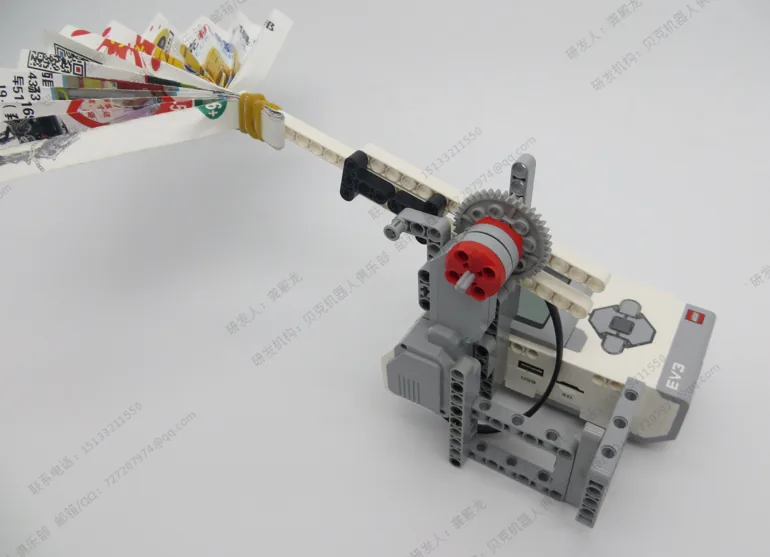
Today you build 5 min

Phew, it is hot today!
Let’s build a robot that fans us.
This is the Folding Fan. It holds a paper fan.
The arm waves the fan. Whoosh! Cool air!
But the arm only goes a little way.
Where do we see it? 5 min

A folding fan opens wide. Then it closes up.
Dancers use them. People use them on hot days.
You wave it a little. Not all the way round!
Building tips in the build
- Look at one picture at a time.
- Find the parts in the picture.
- Push the parts together. Click!
- Clip the fan on tight.
- Stuck? That is OK. Ask your teacher.
Fan dance break! 5 min
Stand up. Your hands are fans!
- Open your hands wide. Fan open!
- Close them up. Fan closed!
- Wave them high. Wave them low.
- Small waves now. Tiny, tiny waves.
- Stop. Sit down. Well done!
Meet the parts 5 min
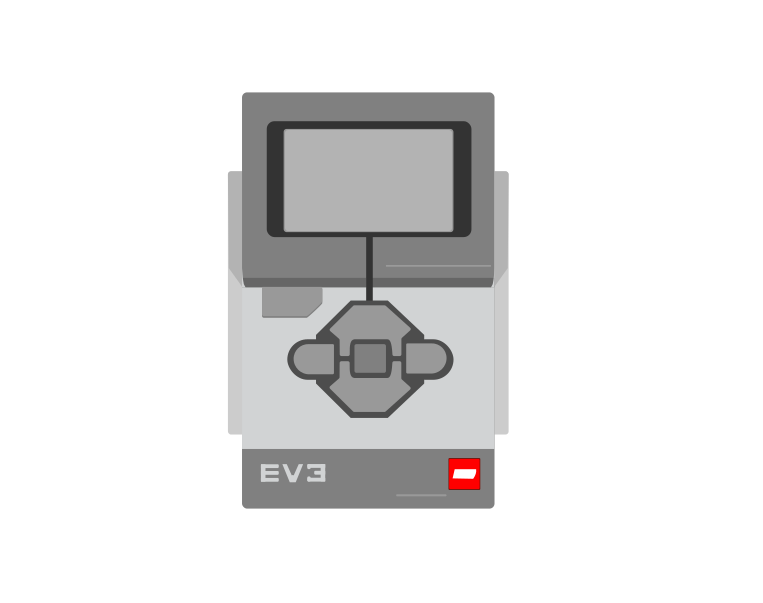
- The BrickIt is the robot’s brain.
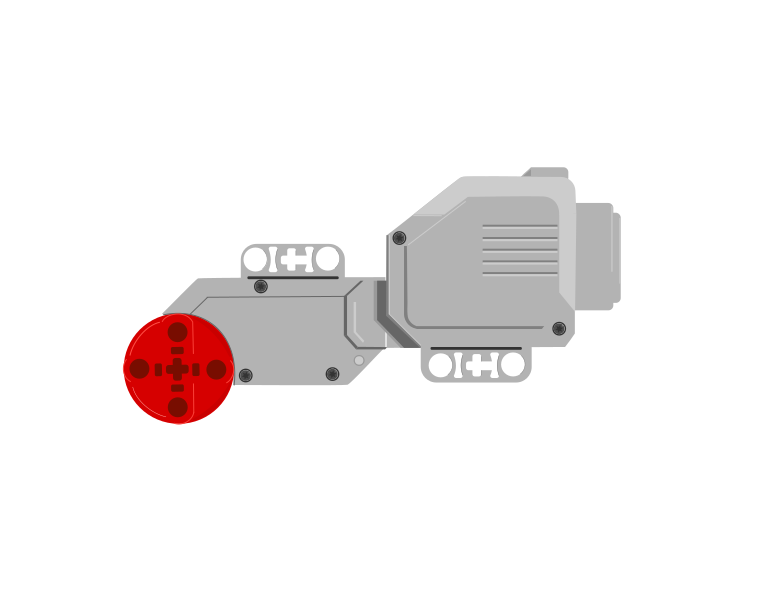
- The big motorIt moves the arm.
- The fanPaper that opens wide. It makes wind.
Plug it in 5 min
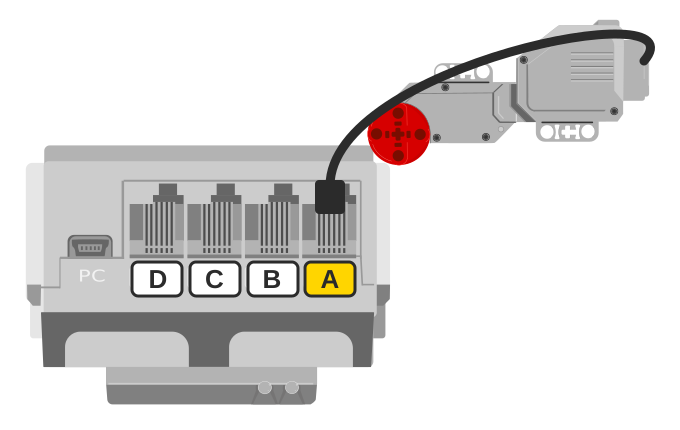
- Plug the motor cable into A. Click!
- Move the arm to the middle. Gently!
Talk to the Brick 5 min
- Press the middle button. The Brick turns on.
- Wait for the screen.
- Your teacher joins the Brick to the computer.
- Can you see a motor on A?
For grown-ups: how to connectUSB or Bluetooth, and what to do when it will not connect.Show meHide
Two routes, and either is fine. USB is the reliable one and the one to fall back on when a room’s Bluetooth is busy; Bluetooth leaves the robot free to move, which some models need.
How to connect the BrickUSB and Bluetooth, step by step, with a photograph of every screen. Open it if you have not done this before — or if pairing is not working.Show meHide
USB — the reliable one
- Switch the Brick on with the dark grey centre button.
- Cable into the Brick’s PC port — the small square socket beside the numbered ports, not one of the numbered ones.
- Other end into the computer.
Bluetooth — name it first
Do these in order. Naming the Brick after you go looking for it in the list is how groups end up driving each other’s robots.
- Name your Brick. On the Brick: Settings (the spanner) → Brick Name. Type something nobody else will pick, then press the tick. Every Brick is called
EV3until somebody changes it. - Turn Bluetooth on. Settings → Bluetooth. Tick Bluetooth and Visibility. Leave iPhone/iPad/iPod unticked.
- Connect from EV3 Classroom. Click the Brick icon at the top of the programming area, find your Brick by name, and click Connect.
- Say yes on the Brick. It asks “Connect?” with the computer’s name — choose the tick, then accept the passkey, which is already 1234.
EV3.The two failures, every class, every time. The Brick has gone to sleep while you were building — press the centre button to wake it. Or you have paired with the group at the next table, which is why the name matters.
The long version, including Port View and how to read the port tiles, is in the Brick & Bluetooth guide.
A small wave 15 min
One whole turn is too much. The arm would crash!
So we use a small number.
when program starts :: events hat
[A v] run [clockwise v] for (0.1) [rotations v] :: motors
[A v] run [counterclockwise v] for (0.1) [rotations v] :: motors
- Add a motor block. Type 0.1.
- Add one more motor block. Pick counterclockwise.
- Type 0.1 again. The same number!
- Check the arm is in the middle.
- Press play. Watch the fan!
0.1 is a tiny bit of a turn.
A small number makes a small move.
Your challenges 5 min
⭐ Challenge 1: Feel the wind
Hold your hand near the fan. Press play. Feel it?
⭐⭐ Challenge 2: Two waves
Add two more blocks. Make the fan wave two times.
⭐⭐⭐ Challenge 3: Back home
Look when it stops. Is the arm still in the middle?
Tidy up 5 min
- Turn the Brick off.
- Keep your Folding Fan in one piece. You need it next time!
- Put spare parts back in the box.

Well done! Your robot keeps us cool!
Teacher note
Timing (90 min): photo and talk 5, real world 5, build 35, break 5, parts 5, ports 5, connect 5, small wave 15, challenges 5, tidy 5.
The motor is a Large Motor on port A (checked on the Level 1 page against page 1 of the manual). The arm swings between two stops and hits the frame if pushed past them. Level 1 measures that swing in degrees and waves 60° out and back. Junior has no degrees, so the page uses 0.1 rotations (36°), started from the middle. Try 0.1 on a built model before class. If the wave is too small to see, 0.15 (54°) is still inside the Level 1 figure.
Children type a decimal for the first time. They do not need to understand it: “0.1 is a tiny bit of a turn” is enough. If a child types 1, stop the program at once.
Words met today: middle, a tiny bit of a turn.