What you are building 3 min
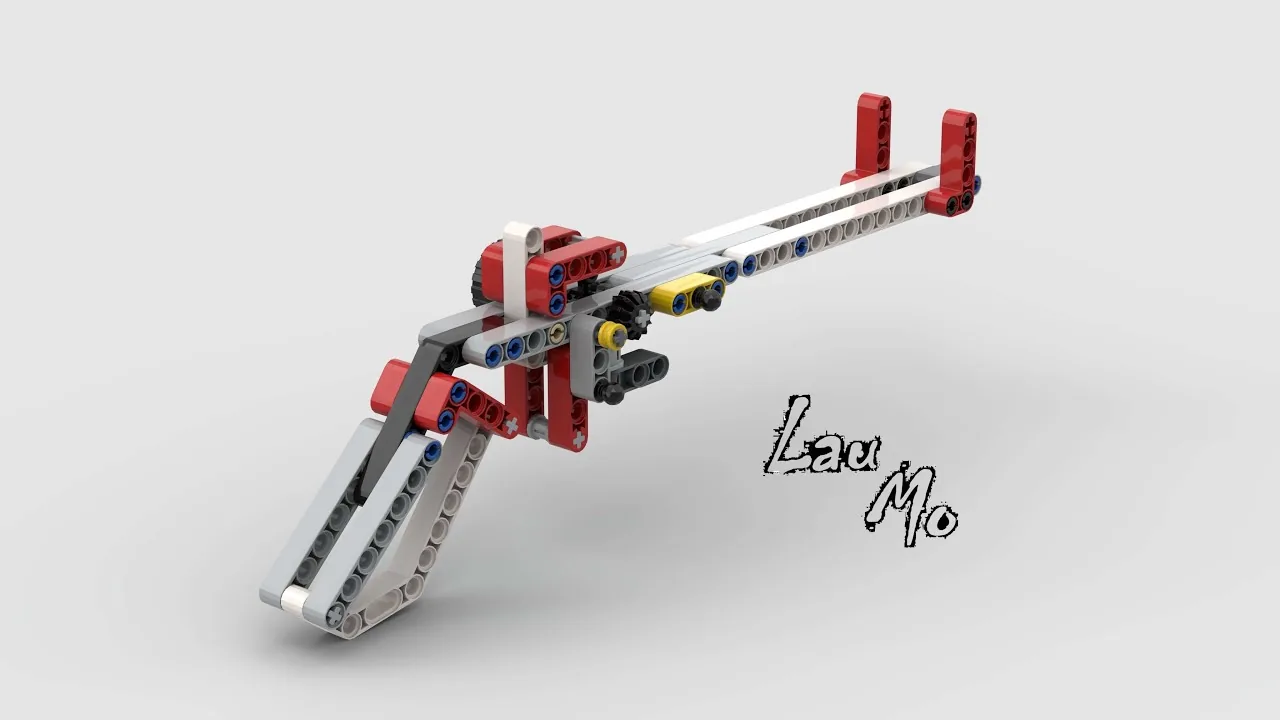
The EV3 RUBBER BAND GUN: TODO — name it and say what it does, in two or three sentences. The machine first, not the idea.
TODO — what makes this model worth building — the thing it can do that nothing built so far could.
By the end of the lesson TODO — the physical outcome.
In the real world 5 min
Where you have seen it
TODO — where this machine already works outside the classroom. A real example, named, not a category.
The science
TODO — the principle the real machine relies on — the same one the model is about to use.
Main concept 6 min
TODO — the single idea, explained once and properly. Show it with real blocks (a <pre className="ev3blocks"> block) and a visual, not prose alone.
What's in this build 4 min
TODO — have the student identify every electronic component the model uses. Confirm with the part artwork, not prose (§12.1).
- TODO — component, and what it does in THIS model
Ports — and the rule 4 min
Sensors go in 1–4. Motors go in A–D. TODO — then the wiring for this model specifically.
| Component | Port | Why |
|---|---|---|
| TODO | TODO | TODO |
Connect the Brick 4 min
Two routes, and either is fine. USB is the reliable one and the one to fall back on when a room’s Bluetooth is busy; Bluetooth leaves the robot free to move, which some models need.
How to connect the BrickUSB and Bluetooth, step by step, with a photograph of every screen. Open it if you have not done this before — or if pairing is not working.Show meHide
USB — the reliable one
- Switch the Brick on with the dark grey centre button.
- Cable into the Brick’s PC port — the small square socket beside the numbered ports, not one of the numbered ones.
- Other end into the computer.
Bluetooth — name it first
Do these in order. Naming the Brick after you go looking for it in the list is how groups end up driving each other’s robots.
- Name your Brick. On the Brick: Settings (the spanner) → Brick Name. Type something nobody else will pick, then press the tick. Every Brick is called
EV3until somebody changes it. - Turn Bluetooth on. Settings → Bluetooth. Tick Bluetooth and Visibility. Leave iPhone/iPad/iPod unticked.
- Connect from EV3 Classroom. Click the Brick icon at the top of the programming area, find your Brick by name, and click Connect.
- Say yes on the Brick. It asks “Connect?” with the computer’s name — choose the tick, then accept the passkey, which is already 1234.
EV3.The two failures, every class, every time. The Brick has gone to sleep while you were building — press the centre button to wake it. Or you have paired with the group at the next table, which is why the name matters.
The long version, including Port View and how to read the port tiles, is in the Brick & Bluetooth guide.
TODO — the failure cases that actually happen in this room, named.
Confirm the connection 2 min
TODO — read the icons in EV3 Classroom. Do not take the cable's word for it — the student checks the screen before running anything.
Change it and test 8 min
TODO — name the values the student changes, one at a time, and what to watch for each time. One change, one observation.
Where this goes next 2 min
TODO — what this unlocks, and the lesson it sets up.