Challenge 1
Build a crab that never stops walking but changes pace the moment it is touched — faster while held, back to normal the instant you let go. Both changes must feel immediate.
Quick Learn — the model, the instructions, the program and the challenges. The theory is in Full Lesson.
EV3 Robotics›Level 2 · Intermediate›Lesson 37
Level 2 · Lesson 37 · EV3-L02-3760 minutes · Ages 9–16 · Model: EV3 Dancing Crab
The Dancing Crab: a Large Motor working the legs sideways, a Touch Sensor for a claw, and a Brick that reacts to being touched while it is still dancing.
In Lesson 10 the saw waited for the button and did nothing else at all until it arrived. That is right for a saw. It would be a strange crab — a crab that stood perfectly still until you poked it, then moved.
This crab dances all the time. Touching it changes what the dance is, and the difference between those two ideas is today’s lesson.
Ghost crabs on any beach from Krabi to Tuscany. They run sideways at surprising speed, stop dead, wave a claw, and vanish down a hole the moment your shadow reaches them.
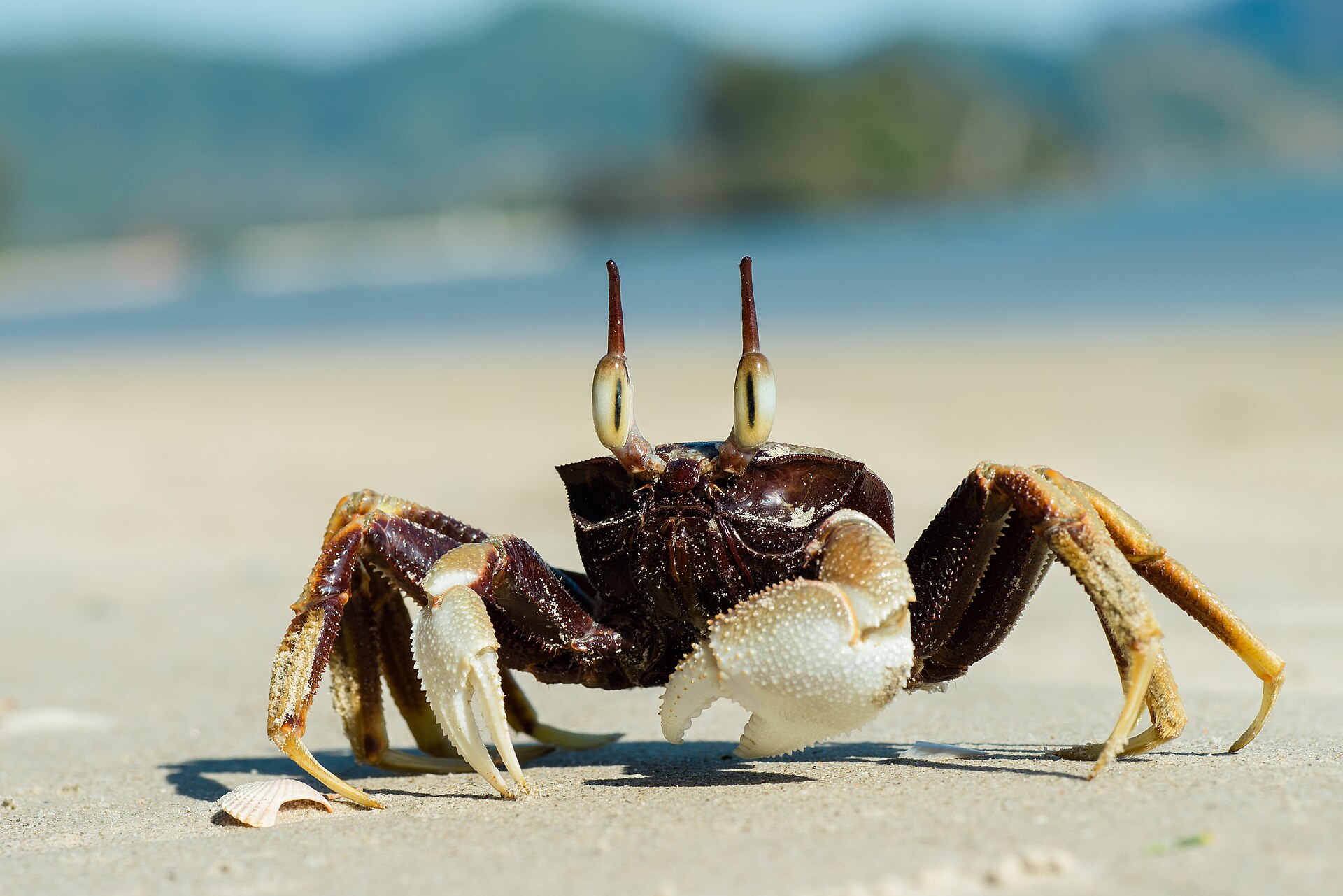
A crab’s leg joints hinge sideways rather than forwards, so sideways is simply the direction it is built to run. And its eyes are on stalks, giving it very nearly all-round vision.
That combination matters: the crab is watching the whole time it is moving. It does not stop to check whether anything is coming. If it had to, it would be caught — a crab that freezes to look around is a crab a gull can see.
An animal that has to stop in order to sense is helpless in the moment it is sensing. Everything that survives outdoors senses while it moves — and every robot that has to keep working while watching for something has the same problem to solve.
Waiting for something and watching for something are not the same thing.
The Touch Sensor gives you a hexagon as well as a wait block. The hexagon is a question you can ask at any moment, and the answer does not hold anything up.
<[1 v] is pressed?> :: sensors
Put the two ways of using the same sensor side by side:
| Block | Shape | What the machine does |
|---|---|---|
| [1 v] wait until [pressed v] | Stack | Stops. Nothing else can happen until the sensor changes. Lesson 10’s saw. |
| <[1 v] is pressed?> | Hexagon | Answers and moves on. Used inside a Switch in a loop, the machine checks constantly while doing something else. |
You have seen this distinction once before, in Lesson 9: the Ultrasonic had a wait until distance block and a distance reporter, and the radar needed the reporter because a radar that stopped to wait would never sweep. Same idea, different sensor — and it is worth noticing that it is the same idea.
forever
  if <[1 v] is pressed?> then
    [A v] set speed to (80) % :: motors
  else
    [A v] set speed to (25) % :: motors
  end
endNothing in that loop ever pauses. It asks the sensor thousands of times a minute, and the crab is dancing throughout — the sensor changes the dance rather than starting it.
The Touch Sensor is the simplest input the EV3 has: a button that is either pressed or not. That sounds trivial, but it is how a robot knows it has hit a wall, reached the end of a track, or been told to start by a person.
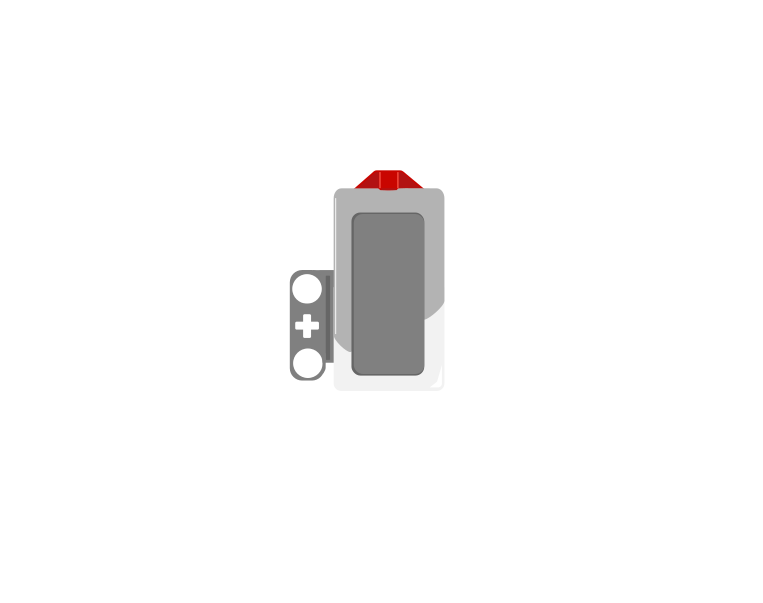 released
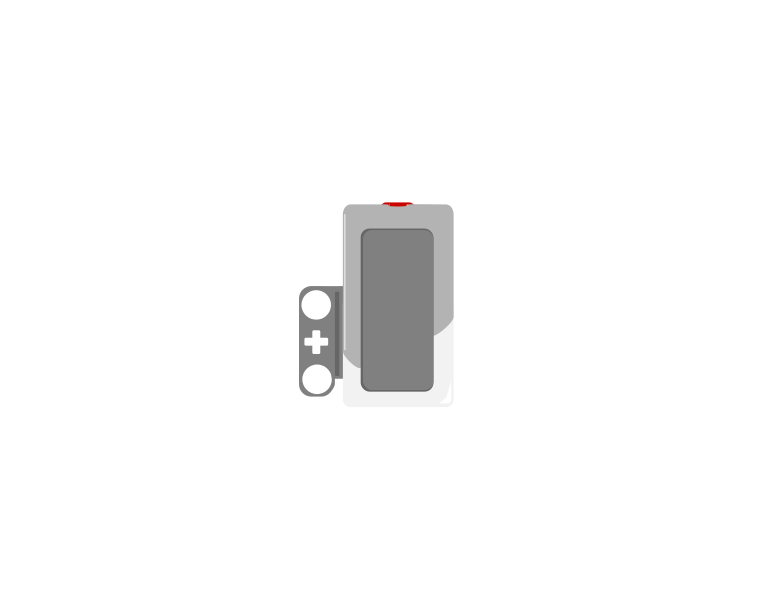 pressed
| Block | What it does |
|---|---|
wait until <[1 v] is pressed? :: sensors> | Holds the program here until somebody presses the sensor. |
<[1 v] is pressed? :: sensors> | Reports true or false. Drop it into a condition to make a decision rather than a wait. |
[1 v] when [bumped v] :: events hat | Starts a whole stack of its own. The dropdown chooses the moment: pressed, released or bumped. |
A button is not only “pressed”. One press is three things: the moment it goes down, the time it stays down, and the moment it comes back up. Watch what a single press does to three programs at once.
versus two hat blocks
The middle counter is the one that surprises people. Nothing is wrong with it — a loop really does check that fast, and every check really is a separate answer.
Nothing there is broken. A loop really does get round hundreds of times a second, and each time it asks is pressed? the honest answer is still yes — so if that loop plays a sound or counts something, it does it hundreds of times from one finger. The two hat blocks each fire once, and they fire at different moments: pressed the instant the button goes down, bumped only when it comes back up.
The three options, and what each is for:
when program starts :: events hat
set movement motors to [B v] and [C v] :: movement
start moving [straight: 0] :: movement
wait until <[1 v] is pressed? :: sensors>
stop moving :: movement
The robot drives until something presses the sensor. Note that the movement is started unmeasured on purpose — the sensor decides when to stop, not a distance.
Touch sensors are everywhere in machines you cannot see into: a lift knows the doors are shut, a printer knows the lid is closed, a washing machine will not spin until it is latched. They are safety devices as much as inputs.
Wait-until is for “then what?”. A hexagon is for “meanwhile, how?”
Up to now a robot has been able to wait for a sensor. Deciding is different: the robot checks the sensor and does one thing or another depending on the answer — and then carries on either way.
| Block | What it does |
|---|---|
if <> then end | Runs the blocks inside only when the condition is true. Otherwise skips them. |
if <> then else end | Runs one set of blocks when true and a different set when false. |
A decision made once, at the start, is almost never what you want. Here are two robots with the identical if-else, testing the identical sensor against the identical number — one inside a loop and one not.
decision inside a loop
the same decision, once
A decision is only worth as much as the last time it was made. Inside a loop, that is a few milliseconds ago.
Nothing is wrong with the right-hand program’s decision. It asked the question, got a truthful answer, and acted on it correctly. It simply never asked again, and the world moved on. Decisions belong inside a loop, so the robot keeps re-deciding as things change.
when program starts :: events hat
forever
  if <([4 v] distance in [cm v] :: sensors) < (15)> then
    stop moving :: movement
  else
    start moving [straight: 0] :: movement
  end
endOnce there is more than one question, decisions can be arranged in four ways. They look nearly identical stacked up in the editor, which is exactly why they get muddled — the thing that differs is not what the blocks say, it is which routes through them exist.
One question sorts them almost completely:
| Are the questions… | Use | How many bodies can run |
|---|---|---|
| independent — any combination can be true | separate ifs | none, some, or all |
| one question, two answers | if / else | exactly one |
| the second only matters when the first is true | nested if | one, and only via the outer |
| mutually exclusive cases — exactly one should win | chained if / else | exactly one, the first that matches |
Each if is asked no matter what the others answered, so any number of them can fire on the same pass. That is the right shape when the conditions genuinely have nothing to do with each other.
forever
  if <[3 v] is ambient light intensity [< v] (20) %? :: sensors> then
    [A v] start motor [clockwise v] :: motors
  end
  if <[4 v] is distance [< v] (15) [cm v]? :: sensors> then
    [D v] start motor [clockwise v] :: motors
  end
endExactly one branch runs, every time. Reach for this whenever the robot must do something either way — and in preference to two ifs testing opposite conditions, which is the same idea written twice and can drift apart.
Putting one if inside another means the inner question is only ever asked when the outer one is true. Use it when the second question is meaningless otherwise: there is no point asking which side an obstacle is on when there is no obstacle.
if <[4 v] is distance [< v] (15) [cm v]? :: sensors> then
  if <([2 v] angle :: sensors) < (0)> then
    start moving [right: 50] :: movement
  end
end
When not to nest. If you only want “both true” and nothing happens at the outer level, an and says it in one block and reads better:
if <<[4 v] is distance [< v] (15) [cm v]? :: sensors> and <([2 v] angle :: sensors) < (0)>> then
  start moving [right: 50] :: movement
end
Nesting earns its place when something happens at the outer level too, or when there is an else at each level and the two mean different things.
This is the shape for a list of cases where exactly one should win: colour bands, distance bands, speed ranges. EV3 Classroom has no else-if block, so you build a chain by putting the next if inside the else of the last one.
And here is why it matters, because this is the single commonest bug in this whole module. Three bands written as three separate ifs are each perfectly correct, and together they are wrong: a reading of 20 is under 30 and under 60 and under 90, so all three run and the last one to run is the one that sticks.
three separate ifs
chained — if / else / if
↑ the rest is inside the else — never asked
Separate ifs are not wrong here so much as unguarded: nothing stops a second one matching. Chaining is what makes “the first one wins” true.
The rule to carry away: if the cases are meant to be exclusive, they must be made exclusive. Chaining does it by construction. Separate ifs only work if you are careful to write non-overlapping bands yourself — light < 30, 30 to 60, 60 and over — which is more to get right and easy to break later.
This is the point at which a machine stops following a script and starts responding. A thermostat, an automatic door, a robot vacuum — all of them are a decision inside a loop.
Forever means forever. This is the second program in the level with no natural end — know where the stop button is before you run it, exactly as you did for the saw.
Say this back before moving on: “Asking does not stop anything.”
| Part | What it is doing here |
|---|---|
| EV3 Intelligent Brick | Asks the sensor over and over while the legs keep running. It is doing two things at once without a second stack. |
| Large Motor — the legs | Drives the sideways walking linkage. Its speed is the only thing the Switch changes, which keeps the decision easy to see. |
| Touch Sensor — the claw | Mounted where a claw would be, so touching the crab is the natural way to press it. On this model the sensor is part of the character, not a control panel. |
| The walking linkage (not electronic) | Turns one rotation into a sideways step. Watch which legs are down at each point — a crab that drags a leg is a linkage assembled a hole out. |
Sensors go in ports 1, 2, 3, 4. Motors go in ports A, B, C, D. They are not interchangeable, and nothing will tell you politely if you swap them.
| Part | Port | Why this one |
|---|---|---|
| Leg motor (Large) | A | One job motor, driving the whole walking mechanism. |
| Touch Sensor (claw) | 1 | Touch is always port 1 in this course — the same port as the saw’s dead-man’s switch, used a completely different way. |
Check your own build now:
Two routes, and either is fine. USB is the reliable one and the one to fall back on when a room’s Bluetooth is busy; Bluetooth leaves the robot free to move, which some models need.
Do these in order. Naming the Brick after you go looking for it in the list is how groups end up driving each other’s robots.
EV3 until somebody changes it.EV3.The two failures, every class, every time. The Brick has gone to sleep while you were building — press the centre button to wake it. Or you have paired with the group at the next table, which is why the name matters.
The long version, including Port View and how to read the port tiles, is in the Brick & Bluetooth guide.
Bluetooth, and find the stop button first. This program never ends by itself, and the crab walks — so it will keep going right off the edge of the table if you let it.
Keep a hand near the stop button for these — several of them leave the crab running.
[1 v] wait until [pressed v] followed by a speed change. Run it and watch the crab stand still until touched. Compare that with the version above and say which is a crab.play beep (75) for (0.05) seconds inside the if. Hold the claw and listen — this is Lesson 13’s repeated-action problem again, and now you know what it sounds like.Steps 2 and 3 are the two halves of the same idea. Without the loop the question is asked once; without the else the answer only ever changes one way. You need the loop and both branches for a machine that genuinely tracks the world.
A machine that watches has to be in a loop, and it has to know what to do when the answer is no.
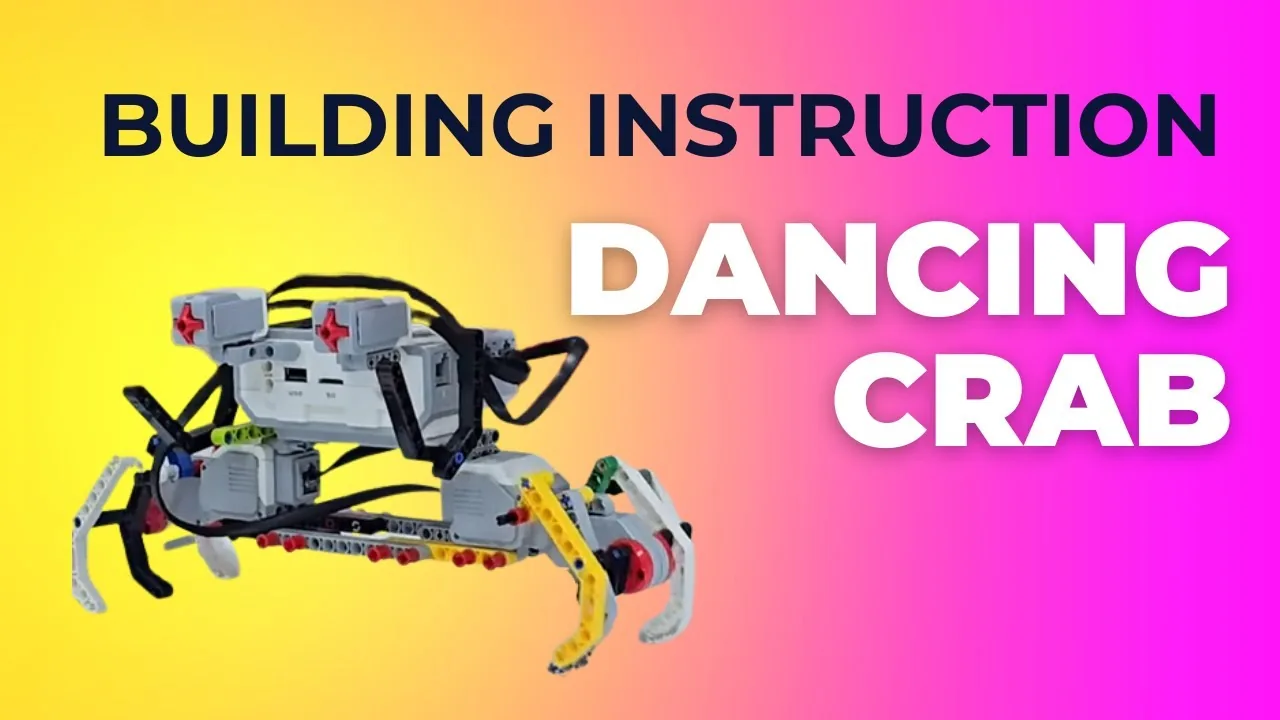
A crab that ambles along until you touch its claw, and scuttles while you hold it.
when program starts :: events hat
clear display :: display
write [KETAM] at line (1) :: display
[A v] start motor at (25) % speed :: motors
forever
  if <[1 v] is pressed?> then
    [A v] set speed to (80) % :: motors
    write [LARI ] at line (3) :: display
  else
    [A v] set speed to (25) % :: motors
    write [JALAN] at line (3) :: display
  end
endWhat success looks like: the crab is walking from the moment you press Play. Touch the claw and it speeds up immediately; let go and it slows immediately. It never stops, and there is no lag you can perceive in either direction.
If the crab freezes until you touch it, you have used
wait until pressedsomewhere instead of the hexagon. That is the saw’s program, and on a crab it is the wrong animal.
Build the model before you read any further. Everything after this is about making it do something, and none of it will make much sense with nothing on the table in front of you.
Use the viewer's own controls to zoom and turn pages. Fullscreen makes it big enough to build from.
The same build on Google Drive — sometimes a video, sometimes a scan:
Use the viewer's own controls to zoom and turn pages. Fullscreen makes it big enough to build from.
Check the finished build against the picture before you switch anything on. A motor mounted the wrong way round is far easier to spot now than it is to debug later, when it looks like a program fault.
Work through them in order — each is harder than the last. The extra challenge comes after all three, and it is meant to make you plan before you build.
Build a crab that never stops walking but changes pace the moment it is touched — faster while held, back to normal the instant you let go. Both changes must feel immediate.
Make touching it change direction rather than speed, so the crab reverses while held and goes back to its original direction when released. It must never stand still.
Give the crab a startle. A touch should produce one sound and one visible flinch, and then it settles back into its walk even if you keep holding the claw. Getting the flinch to happen once rather than continuously is the hard part.
Make the crab behave like something that is alive. An animal reacts while it is doing something else, and it does not react the same way to everything. Your job is to give the crab at least three distinguishable behaviours and a reason for each. Decide the behaviours on paper first and write the rule for each one as a sentence — what it does, what makes it start, what makes it stop. At least one of them must be triggered by touch, and the crab must never stand still waiting for anything. Then test it on somebody who has not seen it. Let them play with it for a minute without any explanation and watch what they try. Two questions when you present it. What did your tester expect the crab to do that it did not, and would adding that have made it more convincing or just more complicated? And your crab only knows about one kind of touch — describe what you would add so it could tell the difference between being poked once and being held.