60 minutes · Ages 9–16 · Model: EV3 Red Light Green Light
What you are building 3 min
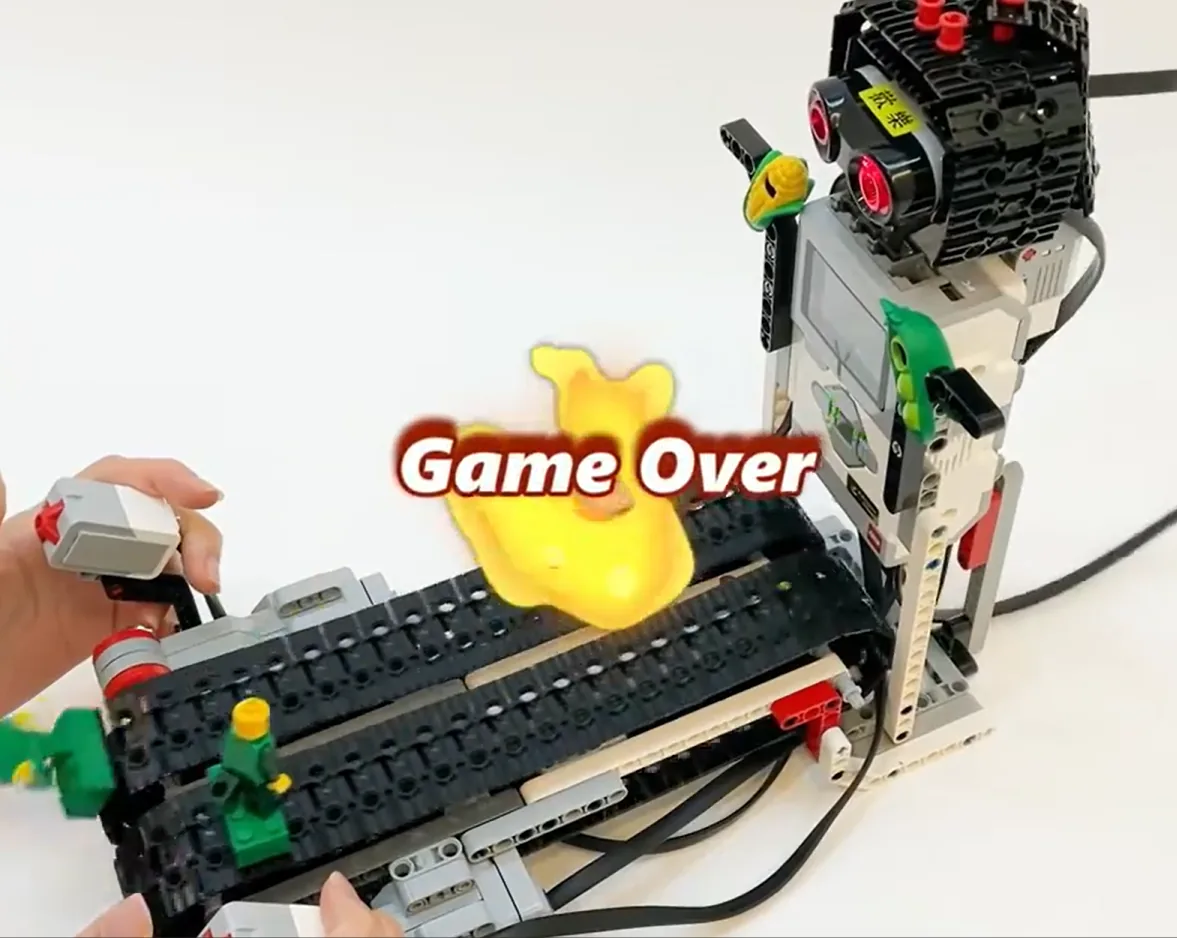
The Red Light Green Light machine: a doll that turns to face the players, an Ultrasonic Sensor watching whether anybody moved, and a finish switch for whoever gets there.
Lesson 8’s wooden man ran the same game and measured reaction times. This one does something harder: it judges. When the doll is facing, movement is against the rules, and the machine has to catch it.
By the end of the lesson your machine will referee a game fairly enough that the players accept its decisions — which is a much higher bar than getting the code to run.
In the real world 5 min
Where you have seen it
Automated officiating is now everywhere in sport. Hawk-Eye tracks a tennis ball to a couple of millimetres. Goal-line technology decides in under a second whether a football fully crossed the line. Swimming touchpads decide races that human eyes cannot split.
Every one of those systems has a precisely defined window. Goal-line technology does not care where the ball is during a throw-in. A false start is only a false start between the set command and the gun — a fraction of a second either side and the same movement means nothing.
Why it is built that way
Because a rule is not “do not move”. It is “do not move, during this period, in this place”. An official who watched all the time would penalise players for walking back to the start.
And every system gives notice. A sprinter hears “set” before the gun; a driver sees amber before red. A rule enforced without warning is a trap, and people will not accept decisions from a machine that behaves like one.
What would go wrong without it
A referee that catches things outside the window is not strict — it is wrong, and it will be argued with. A referee that misses breaches inside the window is ignored. Both destroy the game, and neither is a programming failure exactly.
A rule has a window. Enforce it only inside, and give notice before it starts.
The main concept — watching for a breach 6 min
Enforcing a rule is three separate things, and mixing them up is where every bug in this lesson comes from: when the rule applies, what counts as breaking it, and what happens when it is broken.
Part
On this machine
Gets wrong when…
The window
While the doll is facing the players, and not before.
The check runs while the doll is still turning — players are caught for moving before the rule applied.
The breach
The measured distance changed by more than a tolerance.
The tolerance is smaller than the sensor noise, so standing perfectly still is a breach.
The consequence
Sound, message, and that player goes back.
It is silent, so players do not know why they were sent back.
Movement is a difference, not a distance
The sensor cannot see movement. It sees distance. Movement is a change in distance between two moments — which is Lesson 31’s derived value, doing something with real consequences.
// the instant the rule starts applying, record the scene
set [frozen at v] to (smoothed) :: variables

// then, while the rule applies, watch for a change
if <([abs v] of ((smoothed) - (frozen at))) > (tolerance)> then
  broadcast [caught v] :: events
end
Take a snapshot when the window opens, then compare against it. Anything else measures the wrong thing.
The snapshot must be taken when the window OPENS, not when the doll starts turning. A player who is mid-step as the doll begins to turn has not broken any rule yet, and a machine that records the scene too early will catch them for it.
The tolerance is a fairness decision
Nobody stands perfectly still, and the Ultrasonic reading wanders by a centimetre or two anyway (Lesson 14). A tolerance of zero catches everybody instantly; a tolerance of thirty centimetres lets players stroll.
Set it from the noise, not from an opinion. Measure how much the reading wanders with a person standing still, then set the tolerance a little above that — the same reasoning as Lesson 10’s deadband, applied to a rule instead of a control loop.
Give notice, then start checking
play sound [Mechanical / Blip 4 v] :: sound
set status light to [red v] :: display
[A v] run [clockwise v] for (180) [degrees v] at (90) % speed :: motors
wait (0.4) seconds :: control
set [frozen at v] to (smoothed) :: variables
set [watching v] to (1) :: variables
Warn, turn, settle, snapshot, and only then start judging. The settle is Lesson 22’s — and here it is a fairness measure, not an accuracy one.
ComponentSensing6 min
The Ultrasonic Sensor
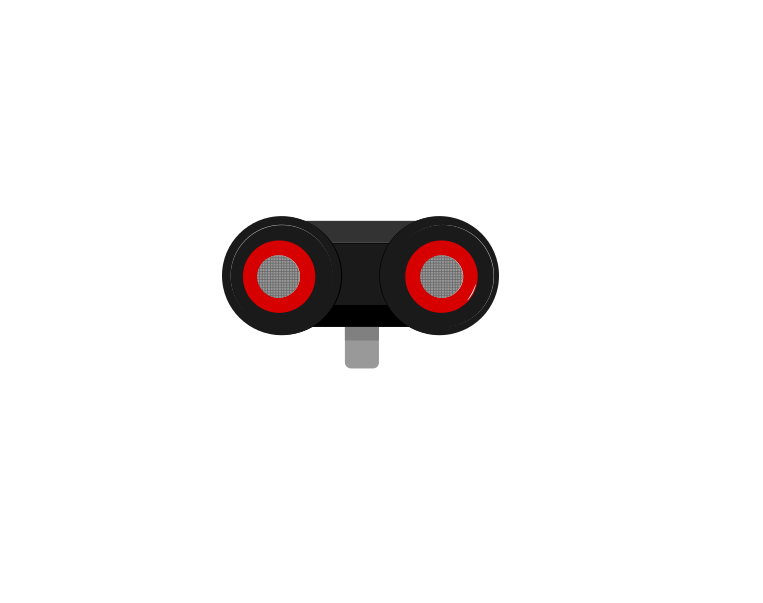
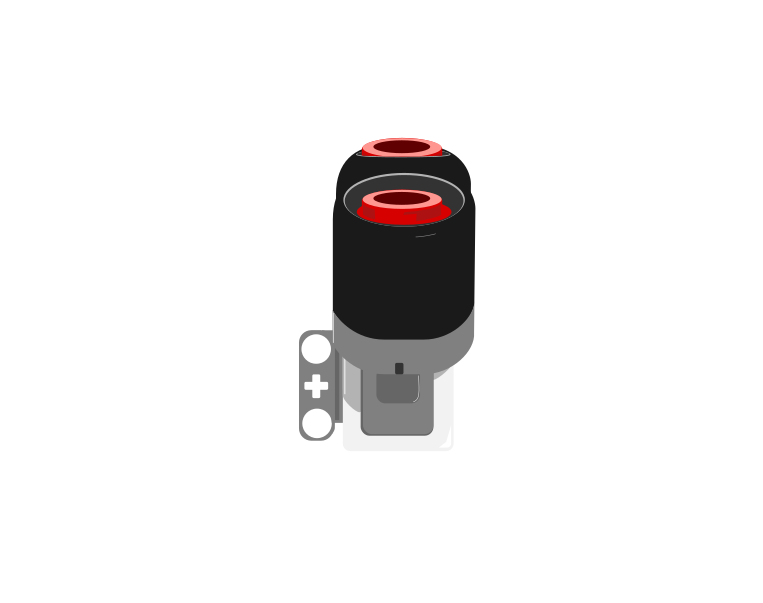
The Ultrasonic Sensor measures distance. It sends out a burst of sound too high for people to hear, listens for the echo, and works out how far away the surface is from how long the echo took — exactly how a bat finds a moth, and how a submarine uses sonar.
front
side
The two round openings on the front are the point of this sensor: one sends the burst of sound out, the other listens for the echo coming back.
Blocks reference
Block
What it does
([4 v] distance in [cm v] :: sensors)
Reports how far away the nearest thing in front of the sensor is, as a number in centimetres.
wait until <([4 v] distance in [cm v] :: sensors) < (15)>
Holds the program until something comes closer than 15 cm.
A number, not a yes or no
This is the important step up from the Touch Sensor. Touch gives you true or false; the Ultrasonic gives you a number, and the deciding is left to you. Pick a threshold below and watch where the robot ends up.
when program starts
start moving straight: 0
4 wait until distance <15cm
stop moving
60cm · reading15cm · threshold
Nothing is close. The sensor reports about 60 cm and the program waits.The robot drives forward. The sensor is sending a burst of sound and timing its echo, over and over, and the number falls.The reading has dropped past the threshold. The condition is true, so the robot stops.Try another threshold. The program is identical — only that one number is different.Finished. The threshold is yours to choose — the sensor only supplies the number.
stopped
The black line on the bar is the threshold; the blue fill is the reading. The robot stops the instant the fill crosses the line.
Three different robots, and only one number is different between them. That is what having a number rather than a yes-or-no buys you: the behaviour is tuned by editing one slot, not by rebuilding the program. It also means the sensor can never tell you it is “close” — close is a decision you make about a reading.
Why it matters
Car parking sensors, automatic doors at a shopping centre, and the sensor that stops a lift door closing on somebody all work this way. Reacting before contact is what makes a machine feel safe.
If your set has an Infrared Sensor instead
The Home/Retail EV3 set (31313) ships an Infrared Sensor and a Beacon in place of the Ultrasonic and Gyro sensors. The Infrared Sensor also measures distance, so the programs in this module work with it — but it reports a rough 0–100 proximity rather than real centimetres, and it is affected by sunlight and by dark surfaces in ways the Ultrasonic is not.
IR Sensor
Beacon
The Infrared Sensor and its Beacon, from the Home set. If your kit has these, expect proximity numbers rather than centimetres — and retune any threshold accordingly.
ComponentData6 min
Variables
Why anybody needs one
Long before there were computers, people had exactly this problem. A shepherd counting sheep through a gate, a trader counting sacks of grain, a builder counting days — none of them can hold the number in their head while they get on with the work. So they scratched a mark on a wall, cut a notch in a stick, or wrote a number on a piece of paper. The number lived outside the person, in a place they had agreed on, and they could go back to it, read it, and change it.
Better still, once the number is written down somebody else can use it. Watch these two: one of them counts and writes, the other never sees a single animal and simply reads the wall.
Abby never remembers the numberBen never sees a henThe wall holds it for both
Abby has a gate and a wall. Before a single hen comes through she chalks 0 on the wall — that is where the number is going to live.A hen goes through. Abby rubs out the 0 and chalks 1. Another goes through, and she does it again.Three hens have been through, and the wall says 3. Abby is not remembering the number — she is reading her own wall each time and writing the next one.Ben has been at the market all morning. He has not seen one hen. He walks up, reads the wall, and knows the answer — without asking Abby anything.That is a variable. Not a number in somebody's head, but a place both of them agreed on: one writes to it, the other reads from it, and it keeps the number in between.Finished. Abby wrote, Ben read, and the wall is what joined them up.
the wall holds it
Notice what never happens: Ben never asks Abby. He does not need to — the number is not in her head, it is on the wall, and the wall is there for anyone who needs it.
Neither Abby nor Ben is holding the number — the wall is. And notice what never happens: Ben does not ask Abby. He does not need to, because the count is not in her head. It is in a place they both agreed on, which is what makes it useful to more than one of them.
That is all a variable is. The robot cannot hold a number in its head either, so you give it a wall of its own, write a name at the top so everyone knows which wall is which — score, count, degree_turn — and the program can read what is on it and write something new. One part of the program writes; another part reads. Exactly Abby and Ben.
The paper, and the two things you can do to it
Say we are counting rotations of a motor. Before we start we write 0 on the paper. Every time the motor completes a turn we cross out what is there and write one more: 0 becomes 1, then 2, then 3. That is change — it has to read the old number to work out the new one.
set is the other thing you can do, and it is completely different: rub the whole paper out and write the number you want. It does not care what was there. Press the buttons and watch what happens to the crossings-out.
score
0
The paper starts blank, so we write 0 on it. That is what a variable is: a place to keep a number while the robot works.
change leaves a trail — every value follows from the one before it. This is what counting is.
set wipes the sheet. Use it to start a count, never to continue one.
Press set score to 0 after counting up a few times and watch the whole history vanish. That is what happens to a count when a set block ends up in the wrong place — and it is the commonest variable bug there is.
Blocks reference
Block
What it does
set [count v] to (0)
Puts a value in, replacing whatever was there.
change [count v] by (1)
Adds to what is already there.
(count)
Reports the current value, for use in a comparison or on the display.
Set, or change?
set replaces; change adds. Counting things needs change. Starting a count needs set. Both programs below have both blocks — the only difference is whether the set block is inside the loop or above it.
set before the loop
when program starts
set count to 0
repeat 4
A run clockwise for 1rotations
change count by 1
set inside it
repeat 4
set count to 0
A run clockwise for 1rotations
change count by 1
Before the loop: counted 0Inside the loop: stuck at 0
Both programs count the turns of a motor. The left sets the count to zero before the loop; the right sets it inside.Turn 1. Both counters read 1, and so far the two programs agree.Turn 2. The left count is 2. The right was set back to zero at the top of the loop, so it is 1 again.Turn 3. The left reads 3. The right still reads 1.Turn 4. The motor turned four times on both robots — only one of them counted them.Finished. Four turns, and one of the two counts is fiction.
stopped
Both programs contain both blocks. Only the position of set [count] to 0 is different.
The count on the right is not broken; it is being told to start again on every pass. Each time round the loop it is wiped back to zero and then changed by one, so the honest answer is always 1 — while the motor cheerfully turns four times. A counter stuck at 1 almost always means a set block that has slipped inside the loop.
Anything oval is a number you can pick up
EV3 Classroom tells you what a block does by its shape, and once you have noticed that, a whole set of questions answers itself:
Oval — reports a number. The blue degrees counted, the timer, a distance, your own variable.
Pointed — reports true or false. These go in an if or a wait until, not in a variable.
Block-shaped — does something. These stack up; they do not fit inside anything.
So when a slot is oval, any oval fits it — and it does not matter in the least where that number came from. You can take the motor’s own A degrees counted and keep it in a variable you named degree_turn, then compare that with a number later. Pick an oval below and watch the same one drop into all three kinds of slot.
pick an oval
the same oval fits all three
set degree_turn to A degrees countedkeep it in a variable of your own
A degrees counted+10do arithmetic with it
A degrees counted>50compare it with a number
Every one of those slots is oval-shaped, and A degrees counted is an oval — so it drops in. Nothing about where the number came from matters.
This is what makes a variable more than a counter. A sensor reading is true only at the instant you read it; copying it into a variable freezes it, so the robot can compare where it is now against where it was when something happened:
when program starts :: events hat
[A v] reset degrees counted :: motors
set [degree_turn v] to ([A v] degrees counted :: sensors)
start moving [right: 30] :: movement
wait until <(([A v] degrees counted :: sensors) - (degree_turn)) > (400)>
stop moving :: movement
Read the condition aloud: how far the motor has gone now, minus where it was when we started, is more than 400. Both are ovals, so both can go into a subtraction, and the subtraction is an oval too — which is why it can go into a comparison. Ovals nest inside ovals as deep as you need.
Reset at the start, every time
A variable keeps its value after the program ends. Run the program again without setting it back and the second run begins where the first left off — the count starts at 14, the robot thinks it has already done the job. Every variable a program changes must be set to its starting value at the top.
Why it matters
A variable is the difference between a machine that repeats a fixed routine and one that responds to how things have gone — counting parts, tracking a score, remembering where it started.
ComponentData5 min
Broadcasting a message
A broadcast lets one stack tell another to start. The sender does not need to know who is listening — it announces, and any stack waiting for that message runs.
Blocks reference
Block
What it does
broadcast [message1 v] :: events
Sends the message and carries straight on.
broadcast [message1 v] and wait :: events
Sends the message and holds until every stack that received it has finished.
when I receive [message1 v] :: events hat
Starts this stack whenever that message is sent.
Broadcast, or broadcast and wait?
Both send the same message to the same stack. The difference is what the sender does next — which is invisible in a listing, because the two blocks sit in exactly the same place. Use the switch to try each one.
the sensor stack
when program starts
4 wait until distance <15cm
broadcast obstacle-found
write SEEN IT at line 1
the motor stack
when I receive obstacle-found
stop moving
play sound Communication / Uh-oh until done
broadcast: sender carries onuse when they are independent
One stack watches the sensor. The other is waiting to be told something.An obstacle. The sensor stack broadcasts «obstacle-found».The receiver starts stopping the motors — and the sender has already moved on to its own next block without waiting.Both stacks ran at once. The sender never found out when the receiver finished.Finished. Both stacks ran at once, and neither waited for the other.
watching
The sender never names the receiver — it announces, and whoever is listening runs. That is what lets the motors keep exactly one owner.
Plain broadcast is the right choice when the two jobs are genuinely independent: announce it and get on with your own work. broadcast and wait is the right choice when what comes next depends on the receiver having finished — do not start reversing until the stack that stops the motors has actually stopped them.
What it is really for
Broadcasting splits a program into parts that each do one job. A stack that watches the sensors can announce obstacle; the stack that owns the motors reacts. Neither needs to contain the other’s code, and the motors still have exactly one owner.
Here is a driving base doing exactly that. Three stacks are running: one sets the wheels going, one does nothing but read the Ultrasonic Sensor, and one owns every movement from then on. Follow the distance rather than the wheels — and notice what it is still doing while the message is crossing.
the driving stack — sets it going, then it is done
when program starts
start moving straight: 0
the watching stack — no motor block in it at all
when program starts
forever
4 wait until distance <15cm
broadcast obstacle-found
4 wait until distance >25cm
the motor stack — owns every movement after the start
when I receive obstacle-found
stop moving
move right: 100 for 0.5rotations
start moving straight: 0
34cm · reading0cm · crept after the broadcast0°heading
the watcher owns no motor blockthe motor stack reads no sensor
Three stacks start together. One sets the wheels going, one watches the sensor, and one is waiting to be told something.The robot drives. The watcher is only reading the sensor — there is no motor block anywhere in it.Under 15 cm, so the watcher broadcasts «obstacle-found» — and the wheels are still turning. Watch the distance keep falling.Now the motor stack receives the message and runs its first block. Only at this point does anything stop.The same stack turns the base 90° to the right, away from the wall.…and sets it driving again. The watcher never named this stack, and never waited for it.Finished. The eyes and the wheels were never in the same stack — the message is the only thing joining them.
wheels turning
Watch the distance at the moment the message is sent. It keeps falling, because a broadcast starts another stack — it does not stop this one.
The watching stack contains no motor block anywhere, and the motor stack never reads the sensor. That is the whole trick: each stack is short enough to hold in your head, and the message is the only join between them. Splitting it this way also means the base can be made to dodge left instead of right by editing four blocks in one place, without going anywhere near the sensor.
Watch the gap in the middle of the run. broadcast does not mean stop — the wheels keep turning right through it, and the base creeps another 3 cm closer before the receiving stack gets as far as its stop moving block. If a robot must halt on the spot, that gap is why it will not.
The sender has no idea who is listening
Any number of stacks can listen to the same message, so one announcement can set several things going at once — stop the motors, sound an alarm and turn the light red. And nothing in the sending block says which of those will happen. Press one and find out.
Press a broadcast block. Nothing in it says what will happen — the stack that receives it decides.
0rotations · Motor A0times written0beeps0stacks running now
when I receive turn-arm
A run clockwise for 1rotations
when I receive show-text
clear display
write HELLO EV3 at line 4
when I receive beep
play beep 60 for 0.5 seconds
Nothing has been sent yet. Press one of the three yellow blocks above.
Three messages, three receivers, one Brick. The blocks you press are identical apart from the name in the dropdown — so whatever happens next was decided entirely by the when I receive stack at the other end. Press all three quickly: nothing queues, because three separate stacks run at the same time. Press the same one twice while it is still going and its stack starts again from the top.
Name them properly
A message called message1 tells a reader nothing. One called obstacle-found explains the whole design at a glance. Names matter more here than almost anywhere else, because the sender and the receiver may be far apart on screen.
Warn, then snapshot, then judge — and only for as long as the rule applies.
▶Smoothing a readingFrom Lesson 14 — averaging several samples, because a single one jumps about and would convict an innocent player.Show meHide
ComponentSensing6 min
The Ultrasonic Sensor
The Ultrasonic Sensor measures distance. It sends out a burst of sound too high for people to hear, listens for the echo, and works out how far away the surface is from how long the echo took — exactly how a bat finds a moth, and how a submarine uses sonar.
front
side
The two round openings on the front are the point of this sensor: one sends the burst of sound out, the other listens for the echo coming back.
Blocks reference
Block
What it does
([4 v] distance in [cm v] :: sensors)
Reports how far away the nearest thing in front of the sensor is, as a number in centimetres.
wait until <([4 v] distance in [cm v] :: sensors) < (15)>
Holds the program until something comes closer than 15 cm.
A number, not a yes or no
This is the important step up from the Touch Sensor. Touch gives you true or false; the Ultrasonic gives you a number, and the deciding is left to you. Pick a threshold below and watch where the robot ends up.
when program starts
start moving straight: 0
4 wait until distance <15cm
stop moving
60cm · reading15cm · threshold
Nothing is close. The sensor reports about 60 cm and the program waits.The robot drives forward. The sensor is sending a burst of sound and timing its echo, over and over, and the number falls.The reading has dropped past the threshold. The condition is true, so the robot stops.Try another threshold. The program is identical — only that one number is different.Finished. The threshold is yours to choose — the sensor only supplies the number.
stopped
The black line on the bar is the threshold; the blue fill is the reading. The robot stops the instant the fill crosses the line.
Three different robots, and only one number is different between them. That is what having a number rather than a yes-or-no buys you: the behaviour is tuned by editing one slot, not by rebuilding the program. It also means the sensor can never tell you it is “close” — close is a decision you make about a reading.
Why it matters
Car parking sensors, automatic doors at a shopping centre, and the sensor that stops a lift door closing on somebody all work this way. Reacting before contact is what makes a machine feel safe.
If your set has an Infrared Sensor instead
The Home/Retail EV3 set (31313) ships an Infrared Sensor and a Beacon in place of the Ultrasonic and Gyro sensors. The Infrared Sensor also measures distance, so the programs in this module work with it — but it reports a rough 0–100 proximity rather than real centimetres, and it is affected by sunlight and by dark surfaces in ways the Ultrasonic is not.
IR Sensor
Beacon
The Infrared Sensor and its Beacon, from the Home set. If your kit has these, expect proximity numbers rather than centimetres — and retune any threshold accordingly.
Say this back before moving on: “When does the rule apply, and what changed since it did?”
What’s in this build 4 min
Stand where a player would and watch the Ultrasonic reading for ten seconds without moving. How much does it wander? That number is the smallest fair tolerance.
Part
What it is doing here
EV3 Intelligent Brick
The referee. Its screen and light must make the state of the game obvious from where the players are standing, not from where the programmer sits.
Large Motor — the doll
Turns to face the players. The turn is the warning, so it must be fast and unambiguous — a slow turn leaves players guessing whether the rule has started.
Ultrasonic Sensor — the eyes
Watches the nearest player. Note it reports one distance, not one per player — the machine can catch somebody moving without knowing who.
Touch Sensor — the finish
Pressed by whoever reaches the doll. It ends the game, and it must work even mid-judgement.
The sensor sees the nearest thing, and that is a real limitation. With several players it cannot tell which one moved, and a machine that penalises the whole line for one person’s movement will be argued with. The mission asks you to deal with that honestly rather than pretend it away.
Ports — and the rule 4 min
Sensors go in ports 1, 2, 3, 4. Motors go in ports A, B, C, D. They are not interchangeable, and nothing will tell you politely if you swap them.
Part
Port
Why this one
The doll (Large)
A
The only motor.
Finish (Touch)
1
Touch stays on 1 across the course.
The eyes (Ultrasonic)
4
Ultrasonic stays on 4 across the course.
Check your own build now:
Doll in A, finish in 1, sensor in 4.
Mark a start line and a finish line with tape. A referee needs a defined pitch, and “how far did they get” is meaningless without one.
Point the Ultrasonic down the course at player height, not at the floor.
Turn the doll to “away” and leave it there. Every round starts from there.
Connect the Brick 4 min
Two routes, and either is fine. USB is the reliable one and the one to fall back on when a room’s Bluetooth is busy; Bluetooth leaves the robot free to move, which some models need.
▶How to connect the BrickUSB and Bluetooth, step by step, with a photograph of every screen. Open it if you have not done this before — or if pairing is not working.Show meHide
USB — the reliable one
Switch the Brick on with the dark grey centre button.
Cable into the Brick’s PC port — the small square socket beside the numbered ports, not one of the numbered ones.
Other end into the computer.
Bluetooth — name it first
Do these in order. Naming the Brick after you go looking for it in the list is how groups end up driving each other’s robots.
Name your Brick. On the Brick: Settings (the spanner) → Brick Name. Type something nobody else will pick, then press the tick. Every Brick is called EV3 until somebody changes it.
Turn Bluetooth on. Settings → Bluetooth. Tick Bluetooth and Visibility. Leave iPhone/iPad/iPod unticked.
Connect from EV3 Classroom. Click the Brick icon at the top of the programming area, find your Brick by name, and click Connect.
Say yes on the Brick. It asks “Connect?” with the computer’s name — choose the tick, then accept the passkey, which is already 1234.
Where to read it. The name sits in the bar across the very top of the screen, on every screen — so you can check which Brick you are holding at any moment without going into a menu. This one is EV3VE. A Brick nobody has renamed says EV3.Step 3, and the reason step 1 exists. Three Bricks in range — read the name before you click Connect. Pairing with the wrong one is not an error: it works perfectly, on somebody else’s robot.
Step 2.Bluetooth switches the radio on; Visibility is what lets the computer find you. With Visibility off your Brick works perfectly and simply never appears in the list.Step 4. Look at the Brick. It asks whether to accept and names the computer. Choose the tick.Then the passkey, already 1234. Press the tick again and you are connected.
The two failures, every class, every time. The Brick has gone to sleep while you were building — press the centre button to wake it. Or you have paired with the group at the next table, which is why the name matters.
The long version, including Port View and how to read the port tiles, is in the Brick & Bluetooth guide.
Download and unplug — then stand well back. You are about to be one of the players, and a person standing beside the machine is a person the sensor can see.
Confirm the connection 2 min
Check the Brick icon: connected, or not.
One motor tile — A.
Two sensor tiles — 1 and 4.
Have somebody stand still at the far end and read tile 4 for ten seconds. Write down the highest and lowest. Then have them take one small step and note the change. Your tolerance lives between those two numbers, and if it does not the game cannot be refereed fairly.
Stuck? The long version, with a photograph of every screen, is in the Brick & Bluetooth guide.
Change it and test 8 min
One change at a time. Predict, then run, then look. Play the game with real people for each — a referee is only testable against players.
Set the tolerance to 1. Everybody is caught immediately, standing still. Explain to the players why, using the numbers from step 8.
Set it to 40. Players can walk during red. Somewhere between the two is a game — find it, and write the number down.
Move the snapshot before the turn. Now anybody still moving as the doll starts turning is caught for something that was legal when they did it. Play one round like that and watch the reaction.
Remove the warning sound. The rule is now enforced with no notice. Ask the players afterwards whether they thought it was fair.
Remove the smoothing and use a single reading. Catches become erratic — the same player, standing equally still, is caught in some rounds and not others.
Test a referee by playing against it. Code that runs is not the same as decisions people accept.
Where this goes 3 min
Your referee has one response: caught, or not. A player twenty centimetres over the line and one who shuffled a fraction get exactly the same treatment.
The next model responds in degrees. Znap watches something approach and does not simply strike — it stirs, then threatens, then snaps, depending on how close and how persistent the intruder is.
A graded response says more than a binary one, and it is how almost every animal warns before it acts. Building the ladder of reactions — and making sure it can climb back down — is the next lesson.
Today the machine judged yes or no. Next it learns to say “not yet”.
This is what you are building: the EV3 Red Light Green Light.
Make it move 10 min
One stack runs the game’s phases; another watches for a breach, but only while it is allowed to.
when program starts :: events hat
set [watching v] to (0) :: variables
set [caught v] to (0) :: variables
set [tolerance v] to (6) :: variables
clear display :: display

// ---- the smoothed reading, computed once for everybody ----
when program starts :: events hat
forever
  set [total v] to (0) :: variables
  repeat (5)
    set [total v] to ((total) + ([4 v] distance in cm)) :: variables
  end
  set [smoothed v] to ((total) / (5)) :: variables
end

// ---- the game's phases ----
when program starts :: events hat
forever
  // GREEN — moving is allowed, nothing is watching
  set [watching v] to (0) :: variables
  set status light to [green v] :: display
  write [GREEN - GO] at line (1) :: display
  [A v] run [counterclockwise v] for (180) [degrees v] at (90) % speed :: motors
  wait (pick random (3) to (7)) seconds :: control

  // WARNING, then the turn
  play sound [Mechanical / Blip 4 v] :: sound
  [A v] run [clockwise v] for (180) [degrees v] at (90) % speed :: motors

  // settle, THEN snapshot, THEN start judging
  wait (0.4) seconds :: control
  set [frozen at v] to (smoothed) :: variables
  set [watching v] to (1) :: variables
  set status light to [red v] :: display
  write [RED - FREEZE] at line (1) :: display
  wait (pick random (2) to (5)) seconds :: control
  set [watching v] to (0) :: variables
end

// ---- the judge: only acts inside the window ----
when program starts :: events hat
forever
  if <(watching) = (1)> then
    set [moved by v] to ([abs v] of ((smoothed) - (frozen at))) :: variables
    write (moved by) at line (5) :: display
    if <(moved by) > (tolerance)> then
      set [watching v] to (0) :: variables
      change [caught v] by (1) :: variables
      play sound [Mechanical / Error v] :: sound
      write [CAUGHT MOVING] at line (3) :: display
      wait (2) seconds :: control
      write [] at line (3) :: display
    end
  end
end

// ---- somebody finished ----
when program starts :: events hat
wait until <[1 v] is pressed? :: sensors>
set [watching v] to (0) :: variables
[A v] stop motor :: motors
write [WINNER!] at line (1) :: display
play sound [Communication / Cheering v] until done :: sound
stop [all v] :: control
Four stacks: one measures, one runs the phases, one judges inside the window, one ends the game. Line 5 shows how much movement the machine thinks it saw.
** The judge checks watching before doing anything. ** Outside the window it is silent — a green-light sprint must not be penalised.
The snapshot is taken after the settle, not before the turn. Anybody mid-step as the doll begins turning is not yet breaking a rule.
The warning sound comes before the turn. Players get notice, which is what makes the decisions acceptable.
Line 5 is the evidence. When a player disputes a call, the number on screen is what the machine actually saw — and it makes the tolerance arguable rather than mysterious.
What success looks like: players advance during green, freeze on red, and somebody who shuffles is caught with a noise and a message — while somebody genuinely still is not.
If it catches everybody instantly, the tolerance is below the sensor noise — raise it to a little above the wander you measured. If it never catches anybody, the tolerance is larger than a step, or the snapshot is being retaken inside the loop.
Build it 15 min
Build the model before you read any further. Everything after this is about making it do something, and none of it will make much sense with nothing on the table in front of you.
Use the viewer's own controls to zoom and turn pages. Fullscreen makes it big enough to build from.
Check the finished build against the picture before you switch anything on. A motor mounted the wrong way round is far easier to spot now than it is to debug later, when it looks like a program fault.
Challenges 27 min
Work through them in order — each is harder than the last. The extra challenge comes after all three, and it is meant to make you plan before you build.
Challenge 1
Find the smallest fair tolerance.
Have somebody stand still at the far end for ten seconds and record the highest and lowest reading. Then have them take one small step and record the change.
Report both numbers and the tolerance you chose from them. A tolerance picked without those two numbers is a guess dressed up as a rule.
Challenge 2
Break the window on purpose.
Move the snapshot to before the turn instead of after it. Play one round and watch somebody get caught for moving while the rule did not yet apply.
Then put it back, and write one sentence on why the settle delay is a fairness measure and not an accuracy one.
Challenge 3
Make the decision arguable.
Put the measured movement on screen during every red phase, and freeze the number that triggered a catch so the player can see it.
Then have a player dispute a call and settle it with the number. Evidence is what turns a machine decision into one people accept.
Extra challenge
Referee a real game.
Run Red Light Green Light for at least four people who have not seen the machine before, from a marked start line to a marked finish.
Requirements:
1. A warning before every red phase, so nobody is caught without notice.
2. The snapshot taken after the doll has settled, never before.
3. A tolerance you can justify from measured noise, written on the board.
4. The movement number visible on screen, so every call can be checked.
5. The finish switch works even mid-judgement.
Then deal honestly with the machine's real limitation: the Ultrasonic Sensor reports one distance, so with several players it can catch somebody moving without knowing who.
Write down how you handled it — one player at a time, a narrower beam, a rule that the whole line goes back — and why your choice is fair. A referee that pretends to know more than it does is worse than one that admits the limit.