Before We Begin · The Starter Kit
One-timeYou need three ready-made files before you write a line. Download them once and keep them for all eight lessons.
⬇ platformer-starter.zip — contains the three images and pgzhelper.py. Or grab them one at a time:
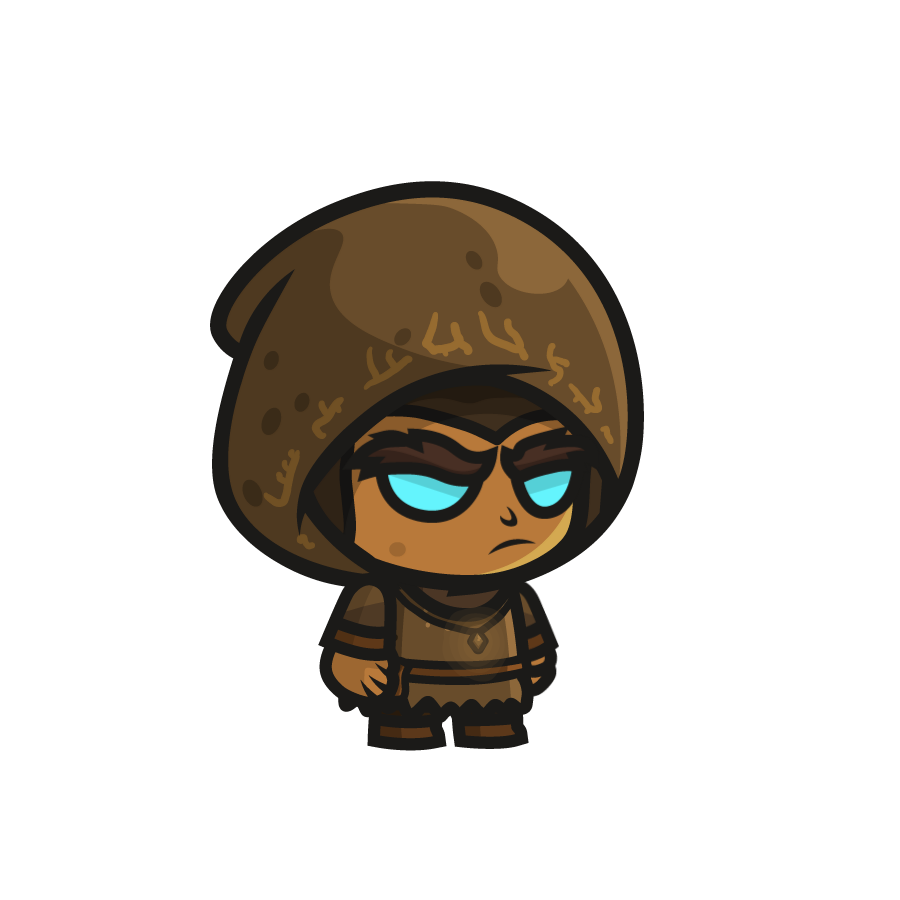
player.png900 × 900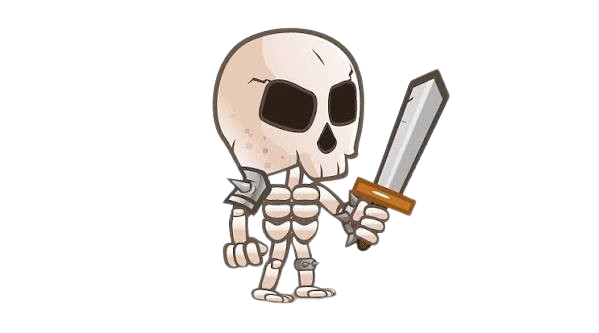
skeleton.png599 × 333 · used in PLT-06
platform1.png60 × 30
⬇ pgzhelper.py — extra Actor powers, already written for you.
Install Pygame Zero if you have not already, exactly as in PZ-01:
pip install pgzero
platformer/
    images/
        player.png        # 900 x 900, a hooded mushroom person
        skeleton.png      # 599 x 333, saved for lesson 6
        platform1.png     # 60 x 30, a plain yellow tile
    pgzhelper.py          # extra Actor powers, already written for you
    platformer.py         # the file you will write
The images folder must be called images. Pygame Zero looks there and nowhere else, and you never type the .png part — Actor('player') finds images/player.png by itself.
Run it — checkpoint 00
Nothing to run yet. Confirm the three images are inside images/, and that pgzhelper.py sits next to the empty platformer.py you are about to write.
Learning Goals
3 minBy the end of this lesson you can:
- Lay out a Pygame Zero project so images load without a full path.
- Open a sized window using the magic names
WIDTH,HEIGHTanddraw(). - Explain why an Actor's rectangle is the size of the whole image file, not the drawing inside it.
- Use
subrectto crop an image andscaleto resize it, so the rectangle matches what you can see.
Warm-Up · Where Does the Picture End?
5 minLook at player.png at the top of this page. The file is 900 × 900 pixels. The character does not fill it: he sits in a 434 × 570 box in the middle, and everything around him is transparent.
In your notebook, answer these three before writing any code:
- If the game thinks the player is 900 × 900, and the window is only 600 tall, what will you see?
- Later we ask "are the player's feet touching the platform?" Whose feet — the drawing's, or the file's?
- A tile is 60 × 30. Roughly how tall should the player be so the level looks sensible?
Transparent pixels are still pixels. To the game they are just as solid as the character, because the game only ever looks at the rectangle. Get that rectangle wrong and your player will stand on thin air, hundreds of pixels above the floor, for the rest of the module.
New Concept · Magic Names, Actors and Bounding Boxes
12 minMagic names. Pygame Zero reads certain names out of your file and uses them itself. You never call these:
WIDTHandHEIGHT— the window size.draw()— called about 60 times a second to paint the screen.update()— also called about 60 times a second, to change the numbers. That is lesson 2.
Actors. An Actor is a picture that knows where it is. It also carries a rectangle: .left, .right, .top, .bottom, .x, .y. Every collision test in this game reads those six names, and none of them look at the artwork.
pgzhelper. The line from pgzhelper import * upgrades Actor with extras plain Pygame Zero does not have. You need three of them across this module: subrect (crop), scale (resize) and flip_x (face the other way, in lesson 4).
player = Actor('player', subrect=(210, 181, 434, 570))
player.scale = 0.12
The four numbers in subrect are left, top, width, height — the box to cut out of the file. After the crop the player is 434 × 570. After scale = 0.12 he is about 52 × 68, a sensible size next to a 60 × 30 tile.
They were measured, not guessed. This short program prints the size of any image and the box around its non-transparent pixels. Save it as a separate file and run it whenever you add new art.
measure.py · separate file
import pygame

pygame.display.init()
pygame.display.set_mode((1, 1))

img = pygame.image.load('images/player.png').convert_alpha()
print('file size:', img.get_size())
print('visible box:', pygame.mask.from_surface(img).get_bounding_rects())
Build Log · Stages 01–02
14 minFrom here on, every lesson is a run of small stages. After each one you run the game and see something new. Nothing is written that you cannot immediately test.
An empty window
Start with the smallest program that puts a window on screen. Type this into platformer.py.
platformer.py · whole file
import pgzrun

WIDTH = 800
HEIGHT = 600

def draw():
    screen.fill((92, 148, 200))

pgzrun.go()
screen.fill takes a red-green-blue triple; (92, 148, 200) is a sky blue. The import pgzrun at the top and pgzrun.go() at the bottom let you press the Run button in your editor instead of typing pgzrun platformer.py in a terminal. Every file in this module keeps those two lines.
Run it — checkpoint 01
An 800 × 600 window opens, filled with flat blue. That is all it should do. If you get ModuleNotFoundError: No module named 'pgzrun', Pygame Zero is not installed for the Python you just ran.
Put the player on screen
Add the pgzhelper import, make an Actor, and draw it.
platformer.py · whole file
import pgzrun
from pgzhelper import *

WIDTH = 800
HEIGHT = 600

player = Actor('player')
player.pos = (400, 300)

def draw():
    screen.fill((92, 148, 200))
    player.draw()

pgzrun.go()
Run that now, before reading on. The player is enormous — far taller than the window. That is not a mistake in your typing; it is the 900 × 900 file being drawn at full size.
Fix it with the two tools from §03. Replace the two player lines with these three:
platformer.py · replace the player lines
player = Actor('player', subrect=(210, 181, 434, 570))
player.scale = 0.12
player.pos = (400, 300)
Run it — checkpoint 02
- A small hooded character stands in the middle of the blue window.
- He is roughly a fifteenth of the window's height.
- There is no transparent border around him, and he does not move yet.
Try It Yourself
13 minSet player.scale = 1 and run. The crop works, but at full size he is 434 × 570 and fills most of the window. Try 0.3, then 0.05. Write down what each one looks like next to a 60-pixel tile.
Put it back to 0.12 before moving on — the platform positions in lesson 3 assume that size.
Save measure.py from §03, change the filename to images/skeleton.png, and run it. Write the two numbers it prints in your notebook — you will need them in lesson 6, and checking them yourself is more convincing than being told.
Hint
The first line is the file size. The second is a list of boxes around the visible pixels; the biggest one is the drawing. You are looking for something close to (211, 27, 240, 278).
Mini-Challenge 🔥 · Debug: Mia's Floating Player
8 minMia copied the stage-02 code from a friend. Her window opens, but nothing appears at all — and the terminal says Unable to load image. There are three mistakes in her file. Find all three before you look at the answer.
import pgzrun

WIDTH = 800
HEIGHT = 600

player = Actor('images/player.png')
player.subrect = (210, 181, 434, 570)
player.scale = 0.12
player.pos = (400, 300)

def Draw():
    screen.fill((92, 148, 200))
    player.draw()

pgzrun.go()
Answer
- The image name.
Actor('images/player.png')should beActor('player'). Pygame Zero adds the folder and the extension itself. - The missing import.
from pgzhelper import *is gone, sosubrectandscaledo nothing at all — plain Pygame Zero Actors have never heard of them. Andsubrectbelongs in theActor(...)call, not on a line of its own. - The capital D.
Draw()is not a magic name;draw()is. Pygame Zero never calls it, so the window stays empty even after the first two are fixed.
Recap
3 minImages live in images/ and are named without the extension. WIDTH, HEIGHT and draw() are magic names Pygame Zero reads and calls for you. An Actor carries a rectangle the size of its whole image file, transparent padding included — so subrect crops the file down to the drawing and scale shrinks it to fit the level. Measure, never guess.
Vocabulary Card
- magic name
- A name Pygame Zero looks for in your file and uses itself —
WIDTH,HEIGHT,draw,update,on_key_down. - Actor
- A picture that knows its own position and rectangle.
Actor('player')loadsimages/player.png. - bounding box
- The rectangle the game uses for an Actor. Always the size of the image file, never the size of the drawing.
- subrect
- A pgzhelper option —
(left, top, width, height)— that crops the image to just the part with the drawing in it.
Homework
4 minChoose your own character image — a PNG with a transparent background, from a free sprite site or drawn yourself. Put it in images/, measure it with measure.py, and swap it into platformer.py with the right subrect and a scale that makes it about 70 pixels tall.
Bring the two lines measure.py printed, plus a screenshot of your character in the blue window.
Hint: if your PNG has no transparent padding at all, the visible box will match the file size — and you can leave subrect out entirely.
Sample · swapping in ninja.png
what measure.py printed
file size: (512, 512)
visible box: [<rect(96, 40, 300, 420)>]
platformer.py · the player lines
# ninja.png is 512x512; the drawing sits in a 300x420 box at (96, 40).
# 420 * 0.17 = about 71 pixels tall, so scale = 0.17.
player = Actor('ninja', subrect=(96, 40, 300, 420))
player.scale = 0.17
player.pos = (400, 300)
Your four numbers will be different — that is the point. What must be true: the character fills the rectangle with no transparent margin, and he ends up roughly 70 pixels tall so the rest of the module still fits.