- Learnt27 min · three parts, clicks, costume numbers, arrows
- Basic25 min · draw the parts and build the maker
- Challenge 1–327 min · click it, count it, go both ways
- Extrabonus · save a favourite
Review — Choose Your Path, finished 5 min
Your Castle Quest story is done. Three things from it matter today.
broadcast [next scene v] and waitholds the storyteller until every sprite has finished its part.- The story remembered things in variables, like
(has key). - The door checked two things at once with
<<> and <>>.
Quick-fire
Your story switched backdrops by name. What else in Scratch can you switch by name?
Reveal the answer
A sprite’s costumes. And costumes can be switched by number too. Today that number is the whole game.
Today’s Topic 3 min
- A monster in three parts: head, body and legs
next costumewhen a part is clicked(costume [number v])— which costume is onswitch costume to (head)— pick a costume by its number- ◀ and ▶ arrows that go round both ways
Learning outcome
By the end of this lesson you will be able to:
- Build one monster out of three sprites that stay stacked.
- Change a part with a click, and read its costume number.
- Make ◀ and ▶ arrows that go round the costumes both ways.
Learnt — costumes as choices 27 min
A dress-up game lets the player choose. In our game, every choice is a costume. Over four lessons the monster gets colours, a dance and a shop full of orders.
1 · Why three sprites?
You could draw every monster as a costume on one sprite. Count them first.
- 4 heads × 4 bodies × 4 legs = 64 monsters.
- One sprite: you draw all 64.
- Three sprites: you draw 12. Scratch puts them together.
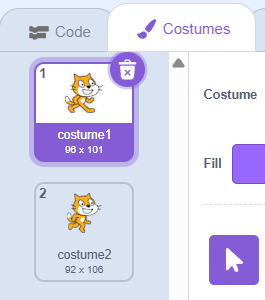
Our head costumes follow one rule. Costume 1 has one eye, costume 2 has two eyes, and so on. So the costume number is something you can see.
2 · Click a part to change it
Each part listens for its own click. next costume moves it on one. After the last costume, it goes back to the first.
- Click the Head sprite. From Events, drag in
when this sprite clicked. - From Looks, add
next costumeunder it. - Click the head on the Stage. It changes. Click four times and you are back.
3 · Which costume is on?
(costume [number v]) is a round reporter in Looks. It reports the number of the costume the sprite is wearing now.
- Find
(costume [number v])near the bottom of Looks. - Tick the box beside it. A readout appears on the Stage.
- Click the head. The readout changes with it.
The tick box is quick, and it is only for you. For the game, copy the number into a variable. Make three: head, body and legs, all For all sprites.
when flag clicked
go to x: (0) y: (65)
switch costume to [one eye v]
set [head v] to (costume [number v])
when this sprite clicked
next costume
set [head v] to (costume [number v])
Body and Legs get the same two stacks. Body goes home to go to x: (0) y: (-25) and Legs to go to x: (0) y: (-110).
How to use this: Click the green flag, then click the head, the body or the legs on the stage to change that part.
4 · Pick a costume by its number
switch costume to [one eye v] picks by name. Its dropdown only lists names, so you cannot type a number into it.
You can drop a round reporter into it, though. Drop in (head) and it picks the costume with that number.
when [3 v] key pressed
set [head v] to (3)
switch costume to (head)
How to use this: Click the green flag, then click the stage once and press 1, 2, 3 or 4 to pick a head.
That is two directions, and both matter this arc. (costume [number v]) reads the number off the costume. switch costume to (head) puts the costume on from the number.
5 · Back and forward arrows
A click only goes forwards. A dress-up game needs ◀ as well. The trick is a sum inside the costume slot.
when I receive [head next v]
switch costume to ((costume [number v]) + (1))
set [head v] to (costume [number v])
when I receive [head back v]
switch costume to ((costume [number v]) - (1))
set [head v] to (costume [number v])
The arrows are two sprites, Arrow1 from the library. Each one sends its message when it is clicked.
when this sprite clicked
broadcast [head next v]
when this sprite clicked
broadcast [head back v]
How to use this: Click the green flag, then click the ◀ or ▶ arrow on the stage beside the head.
Basic — build the maker 25 min
Build it in this order, and test after every step.
How to use this: Click the green flag, then click a part or a ◀ ▶ arrow on the stage.
Step 1 — the Stage
- New project. Delete the cat.
- Choose the Spotlight backdrop.
Step 2 — four heads
- Paint a new sprite and name it Head.
- Draw a head with one eye, over the middle of the drawing area.
- Right-click the costume and choose duplicate. Add a second eye to the copy.
- Duplicate again for three eyes, then four.
- Name the costumes: one eye, two eyes, three eyes, four eyes.
Step 3 — bodies and legs
- Paint a Body sprite with four costumes. Any shapes you like.
- Paint a Legs sprite with four costumes.
- Keep each part about the same size as the others.
Step 4 — stack them
- Make the variables
head,bodyandlegs. - Give each part its green-flag stack: go home, first costume, note the number.
- Press the flag. The three parts should snap into one monster.
- If they overlap badly, change the y numbers until they touch.
Step 5 — clicks
- Give each part its click stack.
- Click each part four times. Watch its number go 2, 3, 4, 1.
Step 6 — arrows
- Add Arrow1. Make it small and put it to the right of the head.
- Duplicate it, switch the copy to the costume pointing left, and put it on the left.
- Give each arrow its broadcast. Give the Head both receivers.
- Now do the same for the body and the legs: four more arrows.
when flag clicked
go to x: (0) y: (-25)
switch costume to [round v]
set [body v] to (costume [number v])

when this sprite clicked
next costume
set [body v] to (costume [number v])

when I receive [body next v]
switch costume to ((costume [number v]) + (1))
set [body v] to (costume [number v])

when I receive [body back v]
switch costume to ((costume [number v]) - (1))
set [body v] to (costume [number v])
A part jumps sideways when it changes.
That costume is not drawn over the middle. Open it, select everything, and drag it until it sits over the centre of the drawing area.
The number on the Stage is one behind.
The set [head v] to (costume [number v]) is above the switch. Move it underneath.
◀ on the head changes the body.
The arrow sends body back, or the Body is listening for head back. Check both dropdowns.
The head hides behind the body.
That is the order the sprites were made in. It is fine if the body covers the neck. If it covers the mouth, move the head up a little.
Click-a-part monster
A monster you change by clicking it.
- Three parts, at least three costumes each.
- Clicking a part changes only that part.
- No part ever moves when it changes.
- The green flag always gives the same starting monster.
Numbers that tell the truth
Three readouts on the Stage, one for each part.
- Each readout shows its part’s costume number.
- It changes the moment the part changes.
- After the green flag, all three read 1.
Teacher note
The tick-box readout for (costume [number v]) passes this too. Push for the variables anyway: Lesson 2-28 checks orders against them, and a pupil who has them now has nothing to rebuild later.
Both ways round
Arrows for every part.
- ◀ and ▶ beside the head, the body and the legs.
- ▶ on the last costume shows the first.
- ◀ on the first costume shows the last.
- The numbers on the Stage stay right the whole time.
Teacher reveal — the head’s arrows
when I receive [head next v]
switch costume to ((costume [number v]) + (1))
set [head v] to (costume [number v])

when I receive [head back v]
switch costume to ((costume [number v]) - (1))
set [head v] to (costume [number v])
Six arrow sprites, six messages. A pupil who spots that next costume could replace the first receiver is right — there is no “previous costume” block, which is why the sum exists at all.
Save a favourite
Make a monster you love. Press S to save it. Change everything. Press L and your favourite comes back.
- S copies the three numbers into three more variables.
- L puts the three costumes back from those numbers.
- The green flag does not wipe the saved monster.
How to use this: Click the green flag, then click the parts on the stage to change them. Click the stage once, press S to save and L to load.
Summary 5 min
- Three sprites with four costumes each make 64 monsters from 12 drawings.
(costume [number v])reads which costume is on.switch costume to (head)puts a costume on from a number.switch costume to ((costume [number v]) + (1))is ▶. Use- 1for ◀.- Scratch goes round at both ends of the costume list.
- Costume number
- A costume’s place in the list. The first is 1.
- Reporter
- A round block that holds a value, like a number or a name.
- Wrap round
- Going past one end of a list and coming back at the other.
- Part
- One sprite of a creature built from several.
Hand in
Save your maker and share the link with your teacher. Next lesson the monster gets its colours.