- Learnt27 min · the project page, credits, saving and sharing, the checklist
- Basic25 min · ship your game
- Challenge 1–327 min · words that explain it, the self-playtest, ship it
- Extrabonus · version 1.1
Review — where we got to 5 min
- Screens are broadcasts. The flag only broadcasts title.
- Every good and bad moment has a sound. Juice makes it feel alive.
- The best score is never reset. Score and lives reset on play.
Quick-fire
You send your game file to your cousin. They press the flag and have no idea what to do. What did you forget?
Reveal the answer
Instructions they can find. Put them in the game, on your how to play screen. Put them on the project page too. A finished game explains itself without you.
Today’s Topic 3 min
- The project page: Instructions, and Notes and Credits
- A credits screen inside the game
- Saving an .sb3 file, and sharing on scratch.mit.edu
- The self-playtest checklist
- A look back at all of Level 2
Learning outcome
By the end of this lesson you will be able to:
- Write instructions and credits that a stranger can follow.
- Save your game as a file, and share it safely if you have an account.
- Test your own game cold, with a checklist, and fix what it finds.
Learnt — from finished to shipped 27 min
1 · The project page
Every shared project on scratch.mit.edu has a page. Beside the game are two boxes.
- Instructions — how to play. For the player.
- Notes and Credits — who made it, and what it used. For everybody else.
INSTRUCTIONS
Click the green flag, then click PLAY.
Hold the left and right arrow keys to move the cat.
Catch the stars: 1 point each.
Dodge the rocks. Each one costs a life. You have 3.
Can you beat your best score?
NOTES AND CREDITS
Made by Mia.
Sprites from the Scratch library: Cat Flying, Star, Rocks.
Sounds from the Scratch library: Collect, Oops, Lose.
Planned on paper first, then built in four lessons.
Version 1.0: title, how to play, sounds, best score.
2 · A credits screen inside the game
A saved file travels without its project page. So the credits go inside the game as well.
- Add a Credits button to the title screen.
- Add a credits card sprite, and a Back to Menu button.
- The Credits button broadcasts
credits. Back broadcaststitle. - Give every sprite a rule for the new screen. Most of them hide.
when I receive [title v]
go to x: (0) y: (-150)
show

when this sprite clicked
broadcast [credits v]

when I receive [credits v]
hide
when I receive [credits v]
go to x: (0) y: (-135)
show

when this sprite clicked
broadcast [title v]

when I receive [title v]
hide
How to use this: Click the green flag, then click Credits on the stage to read them. Click Back to Menu to return to the title.
3 · Save it, and share it
Everything you need is in the purple bar at the top of the editor.
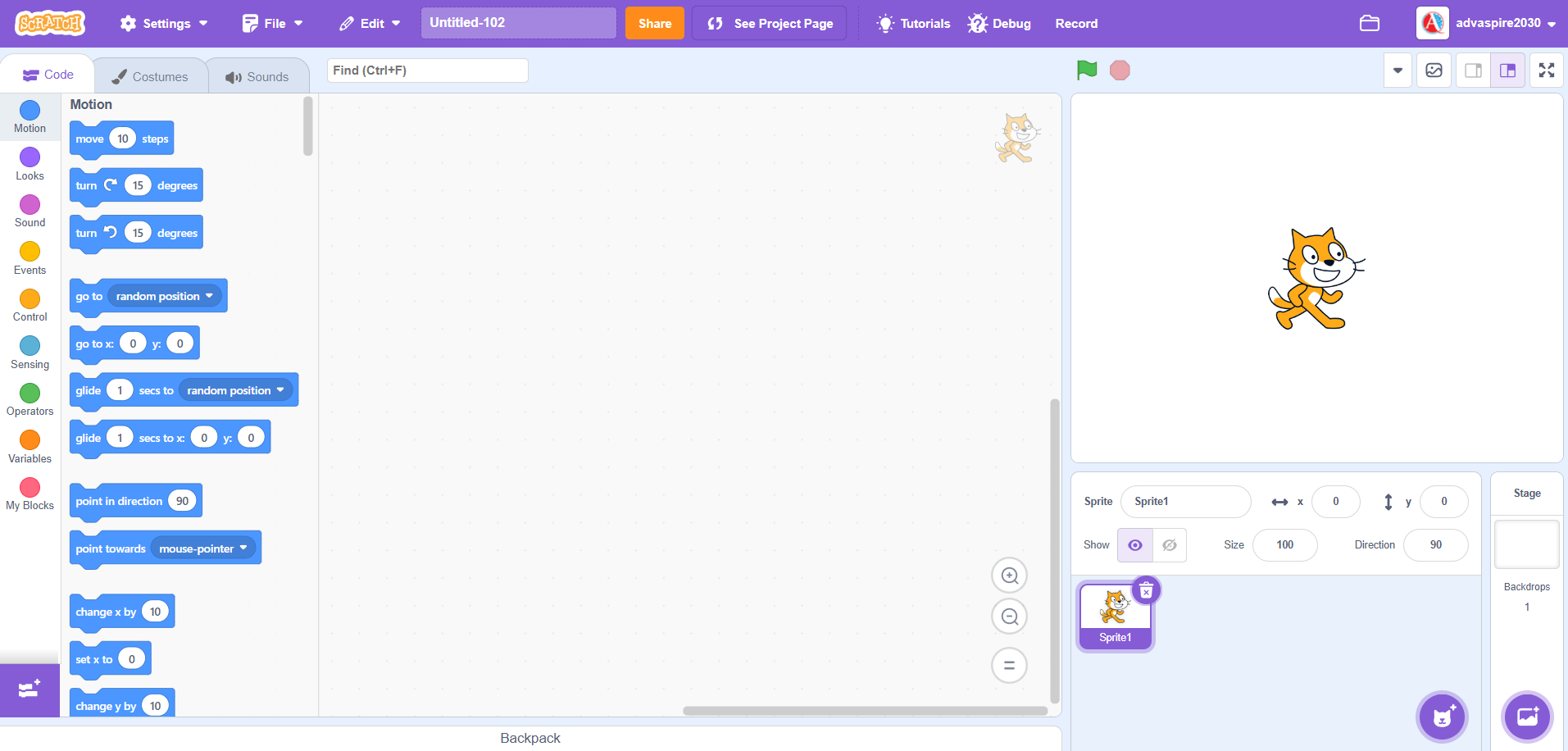
| # | Part | What it does |
|---|---|---|
| 1 | File | Save to your computer makes an .sb3 file. Load from your computer opens one. |
| 2 | Project title | Your game’s name. The saved file and the page both use it. |
| 3 | Share | Puts the game on the website for anyone to play. Needs an account. |
| 4 | See Project Page | Opens the page with the Instructions and Notes and Credits boxes. |
Save a file — everybody does this
- Type your game’s name in the title box.
- Open File. Choose Save to your computer.
- Find the .sb3 file. It is usually in your Downloads folder.
- Open it again with File, Load from your computer. Play it once.
Share it — only with an account
- Click See Project Page.
- Fill in Instructions, and Notes and Credits.
- Click Share. Now anyone can play it, look inside, and remix it.
- Copy the web address. That is your game’s link.
4 · The self-playtest
You know your game too well to test it straight away. Your memory knows every key. So leave it first.
- Save it. Do something else for ten minutes — or wait until tomorrow.
- Shut every script window. Only the Stage is allowed.
- Play it as if you had never seen it. Tick the list as you go.
| Check | ✓ |
|---|---|
| The title screen shows the game’s name. | ☐ |
| How to play says the keys first. | ☐ |
| Every button does what its words say. | ☐ |
| Nothing moves until you press PLAY. | ☐ |
| Every game starts with score 0 and full lives. | ☐ |
| Every good and bad moment has a sound. | ☐ |
| The game ends by itself, and says so. | ☐ |
| PLAY AGAIN works three times in a row. | ☐ |
| The best score survives the green flag. | ☐ |
| No leftover clones on any screen. | ☐ |
| The credits say who made it and where the art came from. | ☐ |
| The Instructions box matches the game. | ☐ |
How to use this: Click the green flag, then click PLAY, HOW TO PLAY or Credits on the stage. In the game, click the stage once and hold ← or → to move the cat. PLAY AGAIN starts a new round.
Basic — ship your game 25 min
Your game, or Star Catcher. Finish it, test it, and send it out.
Step 1 — the credits screen
- Add a Credits button, a credits card and a Back to Menu button.
- Write who made it and where the sprites and sounds came from.
- Go title, credits, title three times.
Step 2 — the words
- Write your Instructions on paper, keys first.
- Write your Notes and Credits. First name or username only.
Step 3 — the self-playtest
- Save, and leave it for ten minutes.
- Play it with every script window shut. Tick the checklist.
- Write down every line you could not tick.
Step 4 — fix, then test again
- Fix one line at a time, the way you learnt in Lesson 46.
- Test the whole list again after the last fix.
Step 5 — save the file
- Give the project its real name.
- Save it to your computer as an .sb3 file.
- Load the file and play it once, start to finish.
Step 6 — share it, if you can
- Only with an account, and only with permission.
- Fill in both boxes on the project page, then click Share.
- Write down the link. No account? Keep the .sb3 file.
Check your Credits button against the shipped game. It hides on every screen except the title.
when I receive [title v]
go to x: (0) y: (-150)
show

when this sprite clicked
broadcast [credits v]

when I receive [credits v]
hide

when I receive [how to play v]
hide

when I receive [play v]
hide
The Credits button shows up in the middle of the game.
It has no rule for play. Add when I receive [play v] and hide.
My saved file is called Untitled.
The title box still says Untitled. Type your game’s name there, then save again.
I cannot find the Share button.
You are not signed in, or you are using the offline Scratch app. Both are fine. Hand in the .sb3 file instead.
My Instructions say space, but the game uses the arrows.
The words drifted from the game. Read every key hat and every key question in your scripts, and list them all.
Words that explain it
Instructions and credits a stranger could use.
- Instructions: how to start, the keys, the goal, how you lose.
- Every key and click your game uses is listed.
- Credits: who made it, and every library sprite and sound it used.
- No full name, no school, no address.
The self-playtest
The whole checklist, on your own game, after a real gap.
- Every line of the checklist tried.
- Every script window shut while you test.
- Every line you could not tick is fixed, then tested again.
Teacher note — the gap is the tester
A pupil who tests straight after building is testing their memory, and their memory always knows what to press. Ten minutes on something else finds more than any partner.
Where several pupils happen to be at this lesson together, playing each other’s games is a lovely bonus. It is never the requirement.
Ship it
The game leaves the editor and still works.
- A credits screen inside the game, with a way back.
- Saved as an .sb3 file with the game’s real name.
- The saved file, loaded on its own, plays from title to game over.
- With an account and permission: shared, with the link written down.
Teacher note — hand-in
Accept either the project link or the .sb3 file. Never require an account: many pupils are under 13, and the parent’s email step is the family’s decision.
Version 1.1
Real games keep getting better after they ship. Take one idea off your later list and release a new version.
How to use this: Click the green flag, then click PLAY on the stage. Click the stage once and hold ← or → to move the cat. Every 10 points the level goes up.
Teacher notes — Star Catcher’s version 1.1
when I receive [play v]
set [level v] to (1)
forever
  wait until <(score) = ((level) * (10))>
  change [level v] by (1)
  start sound [Win v]
  say (join [Level ] (level)) for (1) seconds
end
The falling speed reads the level: the star uses change y by ((-3) - (level)) and the rock change y by ((-5) - (level)).
Going further: on the website, (username) reports who is playing. A best score could say who set it.
Summary 5 min
That is Level 2. Forty-eight classes, twelve games, and one of them is all your own.
- Instructions say the keys first, in the player’s words.
- Credits say who made it and where everything came from.
- Save an .sb3 file. Share only with an account and permission.
- Test cold, with a checklist, and fix one thing at a time.
What Level 2 covered
| Lessons | Game | What it taught |
|---|---|---|
| 1–4 | Whack-a-mole | A hammer on the mouse, clone moles, accuracy, a first My Block. |
| 5–8 | Car Race | Two players, momentum, checkpoints, and a menu. |
| 9–12 | Shooting Game | Aiming, health for each clone, weapons, waves and a shop. |
| 13–16 | Treasure Hunt | Distance to, comparisons, and, or and not. |
| 17–20 | Line Follower | Touching colour, and colour is touching colour. |
| 21–24 | Choose Your Path | Broadcast and wait, story choices, ask and answer. |
| 25–28 | Monster Maker | Costume number, graphic effects, sliders, layers. |
| 29–32 | Times-Table Challenge | Questions from pick random, a timer, streaks. |
| 33–36 | Road Crossing | Clones with their own speed, riding logs, levels. |
| 37–40 | Penalty Shootout | Aiming, a power meter, a goalkeeper that decides. |
| 41–44 | Space Invaders | A grid of clones, a marching army, waves. |
| 45–48 | Game Studio | Plan, debug, polish and ship a game of your own. |
Level 2 words
- Clone
- A copy of a sprite, made while the game runs.
- For this sprite only
- A variable each clone keeps for itself.
- Broadcast
- A message that any sprite can answer.
- Broadcast and wait
- Send a message, then wait until every answer has finished.
- Boolean
- A true-or-false question, in a hexagon block.
- and, or, not
- Join questions together, or turn one round.
- My Block
- A block you make yourself from other blocks.
- Costume number
- Which costume a sprite is wearing, as a number.
- Graphic effect
- Colour, ghost, fisheye and more, changed by blocks.
- Timer
- Scratch’s own clock, in seconds.
- Watcher
- The box on the Stage that shows a variable.
- Debugging
- Finding a bug and fixing it, one change at a time.
- Credits
- Who made it, and where everything else came from.
- Share and remix
- Put a project online, or build on somebody else’s — and credit them.
Next: Level 3
Level 3 starts with a short quiz on Level 2. Then it brings lists, which hold many values at once. My Blocks go deeper, with inputs of their own. And you will build platform games that jump, fall and land.
Hand in
Send your teacher your game’s link, or its .sb3 file. Well done.