- Learnt33 min · the Pen extension, pen down, pen up, erase all
- Basic25 min · a pencil that follows the mouse
- Challenge 1–327 min · a clear key, a frame, the arrow keys
- Extrabonus · draw on the paper only
Today’s Topic 3 min
- The Pen extension — new blocks that draw
pen downandpen uperase all- A pencil that draws only while the mouse button is held
Learning outcome
By the end of this lesson you will be able to:
- Add the Pen extension to a project.
- Make a sprite draw a line, and stop drawing.
- Build a sketch pad you draw on with the mouse.
Learnt — drawing with the Pen 33 min
1 · Add the Pen extension
The Pen blocks are not in the palette yet. Scratch keeps them in a box of extras called extensions.
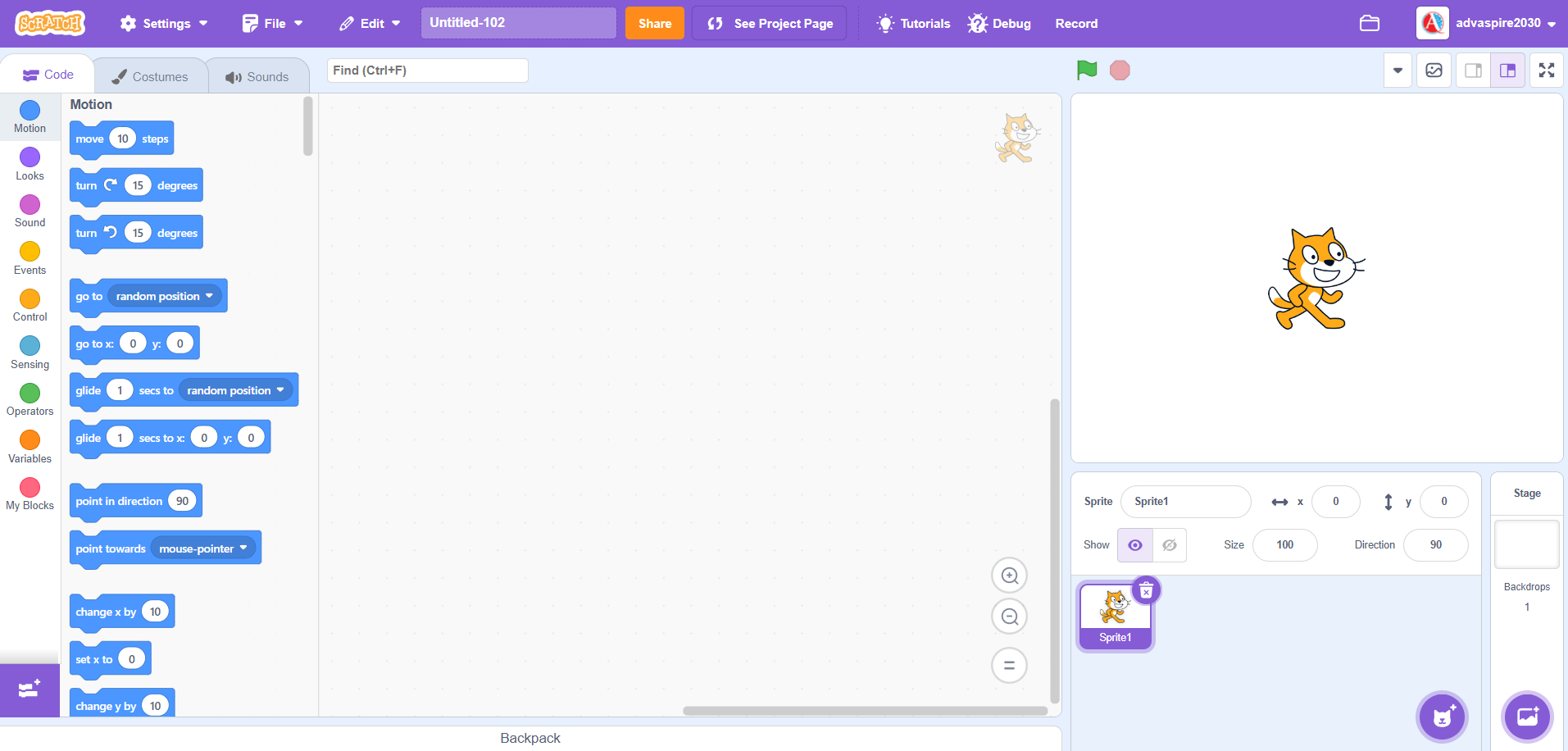
- Click the blue Add Extension button at the bottom-left.
- Click the Pen card.
- A new Pen category appears under My Blocks.
2 · Pen down, pen up
Every sprite carries a pen. pen down puts it on the paper. Now the sprite leaves a line wherever it moves. pen up lifts it off again.
when flag clicked
erase all
set pen size to (4)
go to x: (-180) y: (-40)
pen down
glide (1) secs to x: (-60) y: (-40)
pen up
glide (1) secs to x: (60) y: (-40)
pen down
glide (1) secs to x: (180) y: (-40)
pen up
How to use this: Click the green flag to start it. Nothing else to press — watch the cat walk, then use ↺ Reset to run it again.
3 · Erase all, and a pen you can see
Lines stay on the Stage, even after you press the red stop sign. erase all wipes every line away. Put it at the top of the green-flag script, so each run starts on clean paper.
The pen starts one pixel wide, which is hard to see. set pen size to (4) makes it thicker. Next lesson you will change the size and the colour properly.
How to use this: Click the green flag to start it. Nothing else to press — watch the square appear, then disappear.
4 · A pencil that follows the mouse
A drawing app needs a pencil that goes where the mouse goes. You know that block from Level 2: go to [mouse-pointer v], inside a forever.
when flag clicked
erase all
set pen size to (4)
pen down
forever
  go to [mouse-pointer v]
end
How to use this: Click the green flag, then move the mouse over the stage. Try to draw two separate shapes.
You cannot draw two separate shapes. The pencil never lifts. A real pencil only draws when you press it down.
5 · Draw only while the button is held
<mouse down?> is a Sensing block. It is true while the mouse button is held down. Use it with an if / else:
- button held → pen down
- button not held → pen up
when flag clicked
erase all
set pen size to (4)
forever
  go to [mouse-pointer v]
  if <mouse down?> then
    pen down
  else
    pen up
  end
end
Basic — your first sketch pad 25 min
Start a new project. You will build the sketch pad from the Learnt yourself.
Step 1 — the pencil
- Delete the cat.
- Click Choose a Sprite, search for
Pencil, and add it. - Set its size to 40.
- Add the Pen extension.
Step 2 — check the point
- Click the Costumes tab.
- Look for the small cross in the middle of the drawing area. That cross is the sprite’s centre.
- If the cross is not on the pencil’s point, select the whole pencil and drag it until the point sits on the cross.
Step 3 — clean paper
- Add
when flag clicked. - Under it:
erase allandset pen size to (4).
Step 4 — follow and draw
- Add
forever. Inside it, putgo to [mouse-pointer v]. - Under the go to, still inside the forever, add an
if / else. - Drop
<mouse down?>into its hexagon. - Put
pen downin the top half andpen upin the bottom half. - Click the green flag. Hold the button and drag. Let go and move. Hold and drag again.
when flag clicked
erase all
set pen size to (4)
forever
  go to [mouse-pointer v]
  if <mouse down?> then
    pen down
  else
    pen up
  end
end
How to use this: Click the green flag, then hold the mouse button down on the stage and drag to draw. Let go to move without drawing.
There are no Pen blocks in my palette.
The extension is missing. Click Add Extension at the bottom-left and choose Pen.
The line comes out of the middle of the pencil.
The costume’s centre is not on the point. Go back to Step 2 and drag the pencil until its point sits on the cross.
It draws all the time.
Check the pen down is in the top half of the if / else, and pen up in the bottom half.
It only draws one dot, or nothing.
The go to [mouse-pointer v] is outside the forever. Move it inside, so the pencil follows the mouse all the time.
A clear key
A drawing app needs a way to start again without the green flag.
- Press the space bar and the whole page is wiped.
- The pencil stays where it is, and you can keep drawing.
How to use this: Click the green flag, then hold the mouse button down on the stage and drag to draw. Press the space bar to wipe the page.
Teacher reveal
when [space v] key pressed
erase all
A frame round the paper
Make the app draw a frame by itself before you start.
- When the green flag is clicked, the pencil draws a rectangle near the edges.
- No line joins the frame to the place the pencil started.
- When the frame is finished, the pencil follows the mouse as before.
How to use this: Click the green flag and watch the frame appear. Then hold the mouse button down on the stage and drag to draw.
Teacher reveal
when flag clicked
erase all
set pen size to (4)
pen up
go to x: (-220) y: (120)
pen down
glide (0.8) secs to x: (220) y: (120)
glide (0.8) secs to x: (220) y: (-165)
glide (0.8) secs to x: (-220) y: (-165)
glide (0.8) secs to x: (-220) y: (120)
pen up
forever
  go to [mouse-pointer v]
  if <mouse down?> then
    pen down
  else
    pen up
  end
end
The pen up before the first go to is the point. Without it, the pencil draws a line from wherever it was to the first corner.
Draw with the arrow keys
Make a second version of the app that does not use the mouse at all.
- The pen is always down.
- Each arrow key moves the pencil 5 steps that way.
- The space bar still wipes the page.
- Draw a staircase: right, up, right, up, right, up.
How to use this: Click the green flag, then click the stage once and hold ← → ↑ or ↓ to move the Pencil and draw. Press the space bar to wipe the page.
Teacher reveal
when flag clicked
erase all
set pen size to (4)
go to x: (0) y: (-20)
pen down

when [right arrow v] key pressed
change x by (5)

when [up arrow v] key pressed
change y by (5)
Plus the matching left and down scripts, and the space bar from Challenge 1.
Draw on the paper only
Next lesson your app gets buttons along the top. Keep that strip clean, so your buttons never get scribbled on.
- Paint a light strip across the top of the backdrop, about 50 pixels deep. Its bottom edge is at y: 130.
- The pencil still follows the mouse into the strip.
- No line is ever drawn inside the strip.
How to use this: Click the green flag, then hold the mouse button down on the stage and drag up into the strip at the top.
Teacher reveal
forever
  go to [mouse-pointer v]
  if <<mouse down?> and <(mouse y) < (130)>> then
    pen down
  else
    pen up
  end
end
A very fast drag can still put the last bit of one line into the strip, because the pencil moves first and checks second. Pupils who notice that have understood the loop.
Summary 5 min
- The Pen blocks live in an extension. Add it with the button at the bottom-left.
pen downstarts a line.pen upstops it.erase allwipes every line. Put it first in the green-flag script.- Follow the mouse, and use
<mouse down?>to choose pen down or pen up.
- Extension
- An extra set of blocks you add to a project.
- Pen down
- The sprite leaves a line wherever it moves.
- Pen up
- The sprite moves without drawing.
- Erase all
- Wipes every line and stamp off the Stage.
- Pen size
- How thick the line is, in pixels.
Hand in
Save your sketch pad. Next lesson it gets a row of colour buttons, and you will find out whose pen a button really changes.