The Hexapod: a six-legged walker with the Brick as its body, one motor, and a crank that swings all six legs in step. It walks across the table like an insect.
Every robot you have built so far has begun the moment you pressed play on the computer. This one waits. It stands still, tells you what it wants, and does nothing at all until a person presses a button on the Brick itself.
That is a real change. Up to now your programs have talked to motors. This one listens to a human.
In the real world 5 min
Where you have seen it
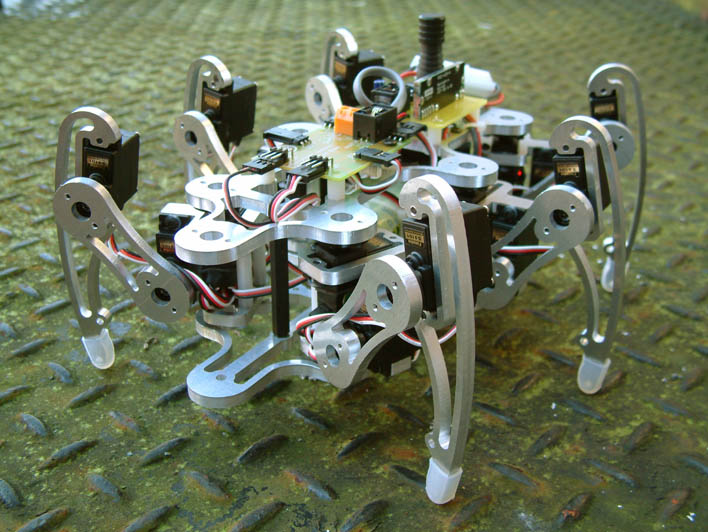
Six-legged robots are used where wheels give up: collapsed buildings, rubble, pipework, the surface of another planet. Engineers did not invent the design — they copied it from ants, beetles and cockroaches, which have been solving rough ground for a very long time.
A six-legged hexapod walking robot. Photo: Wikimedia Commons (public domain).
Why it is built that way
Six legs, not four, and the reason is arithmetic. A six-legged walker can always keep three feet on the ground while the other three swing forward — and three points of contact make a tripod, which cannot rock. So it is stable at every single moment of its stride, without balancing and without ever thinking about it.
A two-legged robot has to catch itself on every step. A hexapod never falls over in the first place. Watch your own model from the side as it walks and count the feet that are down.
What would go wrong without it
A machine that starts the instant it is powered is a machine nobody can be ready for. Real equipment — lifts, presses, rides, power tools — waits for a deliberate human action first, and the wait is the safety feature.
A robot that starts when you say so is safer, and easier to use, than one that starts when it is switched on.
The main concept — the program can wait for a person 6 min
The Brick’s five buttons are not only for finding files. A running program can read them, which makes them the first input in this course that needs no sensor and no extra wire.
wait until stops the program dead until something becomes true. Everything below it is frozen; nothing above it is undone.
You have met a wait before, but it was a wait for time — the ten seconds that set the length of the Ferris Wheel ride. Time always passes. This kind of wait might never end, and that is exactly what makes it useful: the robot is not counting down, it is watching for you.
when program starts
wait until is center button pressed?
A run clockwise for 1rotations
the other way to do it
when center button pressed
A run clockwise for 1rotations
The program has reached the wait block. It is not stuck — it is waiting, and nothing below it will run until the centre button goes down.Up is pressed. The button reporter changes to 4, but this wait is watching the centre button, so the program stays where it is.Right: 3. Still not the one.Centre: 2. The condition is true and the wait lets go.The motor runs. One press, at the moment a person chose.Finished. The robot did nothing at all until a person said so.
waiting for centre
A program parked on a wait block looks identical to a crashed one. This is why the status light or a line on the screen is worth setting before you wait.
▶The Brick buttons, and copying nature's mechanismsThe full reference for both — open it if reading a button, or how one motor swings six legs, is not clear yet.Show meHide
ComponentSensing4 min
The Brick buttons
The Brick has five buttons of its own — up, down, left, right and centre. They need no sensor, no cable and no port, which makes them the easiest way to let a person tell the robot to do something.
Five buttons — up, down, left, right and centre — built into the Brick. No cable, no port, no sensor to plug in.
Blocks reference
Block
What it does
when [center v] button [pressed v] :: events hat
Starts a whole stack when that button is pressed.
wait until <is [center v] button pressed? :: sensors>
Holds an existing program until the button is pressed.
Press to begin
A program sitting on a wait block looks exactly like a program that has crashed. Watch one wait — including through two presses of the wrong button.
when program starts
wait until is center button pressed?
A run clockwise for 1rotations
the other way to do it
when center button pressed
A run clockwise for 1rotations
The program has reached the wait block. It is not stuck — it is waiting, and nothing below it will run until the centre button goes down.Up is pressed. The button reporter changes to 4, but this wait is watching the centre button, so the program stays where it is.Right: 3. Still not the one.Centre: 2. The condition is true and the wait lets go.The motor runs. One press, at the moment a person chose.Finished. The robot did nothing at all until a person said so.
waiting for centre
A program parked on a wait block looks identical to a crashed one. This is why the status light or a line on the screen is worth setting before you wait.
The wait is watching one button. Up and right change the (button) reading, and the program does not care. That reading is a number rather than a name: 0 for nothing, then 1 left, 2 centre, 3 right, 4 up, 5 down.
A hat, or a wait?
A hat gives the button its own separate stack, which can run at any time. Good for a control the user may press whenever they like.
A wait puts the button in the middle of a sequence. Good for “press to begin”, where nothing should happen before it.
Why it matters
Nearly every machine has a start button that is deliberately separate from switching the power on. A robot that begins moving the instant it is powered up is hard to set down and hard to test — one that waits for a press can be positioned first.
ComponentMechanics5 min
Biomimetic mechanisms
Biomimetics is copying a solution from nature. Not the look of an animal — the mechanism. Wheels are a human invention and a very good one, but nothing in nature has them, and there are places a walking machine goes that a wheeled one cannot.
The idea that has to land first
Nothing in a walking robot walks. There is a motor going round and round at a perfectly steady rate — the same motion that drives a car — and a linkage: a set of bars pinned together whose shape turns that circle into a footstep.
Push down, lift, swing forward, put down. No sensor decides when to do each part, and no block in the program says step. The bars do it, because of how long they are and where they are pinned.
1motor, turning one waydownnear foot½turn between the legs
rotation ina stride outno sensors, no code
One motor, turning steadily — the same motion that drives a wheel. Nothing here speeds up, slows down or reverses.Watch the foot rather than the crank. It is flat and slow along the ground, then lifts and swings quickly over the top.The two legs are half a turn apart, so one foot is always down. That is what stops the body dropping between steps.Finished. A steady circle in, a stride out — and not one part of it was told to walk.
still
The faint circle is the crank pin. The green outline is where the foot goes. They are driven by the same axle and they are not remotely the same shape — that difference is the linkage.
The two paths on that stage are the whole module. The crank pin travels a perfect circle. The foot travels something flat along the bottom and arched over the top — and they are driven by the same axle at the same speed. Everything between them is link lengths.
Why the foot path matters
Flat along the bottom. While the foot is on the ground it must travel in a straight line at a steady rate, or the body bounces and the robot shuffles instead of walking.
Lifted on the return. High enough to clear the ground and whatever is on it. A higher arch climbs better and wastes more effort.
Legs out of phase. With legs half a turn apart there is always a foot down, so the body never drops. Four or six legs in pairs is steadier still — which is why insects keep three feet down at a time and are almost impossible to knock over.
The famous designs are worth looking up by name: Jansen linkages (the strandbeest walkers), Klann linkages, and the four-bar “Chebyshev” walker. All of them are the same trick with different numbers.
Other things worth copying
In nature
As a mechanism
A caterpillar or inchworm
Anchor one end, contract, anchor the other, extend. Slow, and it climbs anything.
A fish tail or a snake
A chain of segments swung out of phase — a travelling wave that pushes backwards.
A bird wing
A four-bar linkage that flaps and feathers at once, from one rotation.
A hand or a claw
Linked fingers driven from a single input, so they close around a shape rather than onto a fixed position — a lever chain that adapts by itself.
Walking versus wheels
Be honest about the trade, because it is the engineering content of the whole topic. Wheels are far more efficient, far simpler and far faster on anything flat. Legs are worth their complexity when the ground is not flat: steps, rubble, soft sand, gaps. A walking machine chooses where to put its feet; a wheel has to roll over everything in between.
Building one out of LEGO
Link lengths are everything, and a stud out is a broken gait. Build one leg, get its foot path right, and only then copy it.
Legs need to be built in mirrored pairs on a common axle, half a turn apart. Getting that phase wrong is the usual reason a walker rocks in place.
Walking is hard work — expect to gear down heavily, and expect it to be slow.
A tall walker tips easily. Keep the Brick low and the stance wide — see Centre of gravity.
Why it matters
Robots that copy animals are how machines reach places wheels cannot: search and rescue in collapsed buildings, inspection inside pipes, planetary rovers over loose ground. Studying the mechanism instead of the appearance is what turns an interesting animal into a working machine.
Say this back before moving on: “wait until holds my program until something is true. It does not check the clock — it checks the world.”
What’s in this build 4 min
Look for the parts with cables. There is only one motor — which should surprise you, because the robot has six legs.
EV3 Brick × 1
Large Motor × 1
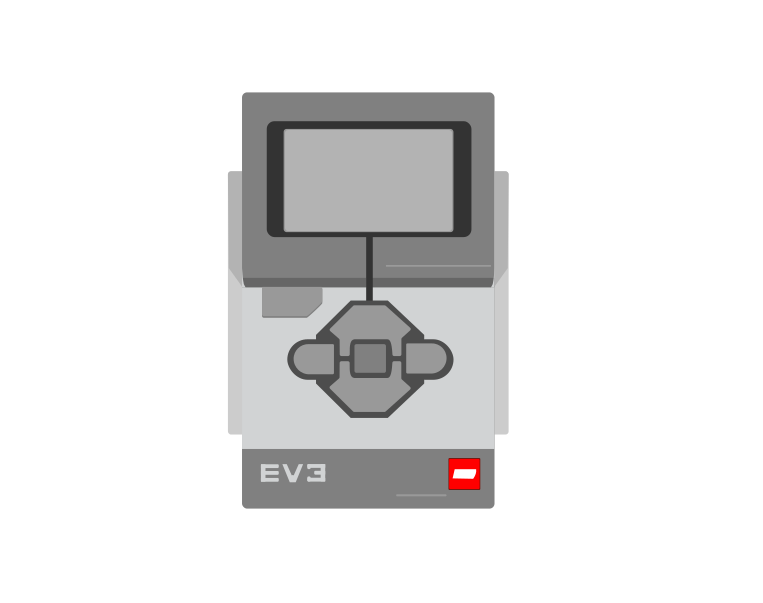
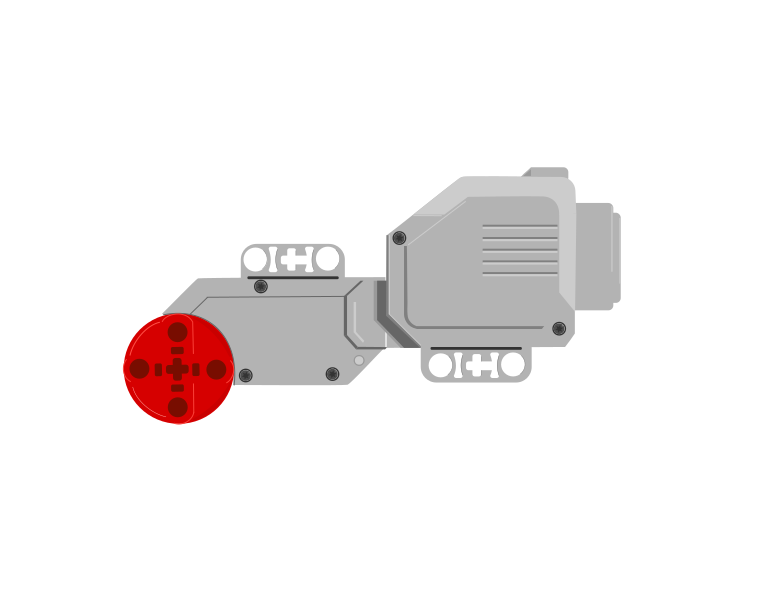
The Hexapod's electronics: the Brick is the body, and a single Large Motor walks all six legs. The buttons on the Brick are the input — no sensor is needed.
One motor, six legs
The motor turns a crank — an axle with an offset arm on it. As the crank goes round, the arm rises, swings forward, drops and swings back, and beams carry that same movement out to every leg. Round-and-round at the motor becomes step-step-step at the feet.
The legs are not all at the same point in the cycle. That is deliberate, and it is what keeps three feet down at all times.
Turn the crank slowly by hand and watch one leg. Follow it through a full turn: lift, forward, down, back. Then look at the leg on the opposite side and notice it is doing the opposite half of the same cycle.
Ports — and the rule 4 min
Sensors go in ports 1, 2, 3, 4. Motors go in ports A, B, C, D. They are not interchangeable, and nothing will tell you politely if you swap them.
Today there is a second thing worth saying about that rule: the buttons have no port at all. They are built into the Brick, so there is nothing to plug in and nothing to get wrong — which is exactly why they are a good first input.
Part
Port
Why this one
Large Motor (drives the crank)
A
A single working motor conventionally takes A. Every program on this page says A.
Brick buttons
none
Part of the Brick. Nothing to plug in.
Check your own build now:
Motor cable in port A — a letter, not a number.
Turn the crank one full turn by hand. Do all six legs move?
Stand it on the table. Are all six feet touching, or is it rocking on four?
Can you still reach the Brick’s centre button with the model standing? You are about to need it.
Connect the Brick 4 min
Two routes, and either is fine. USB is the reliable one and the one to fall back on when a room’s Bluetooth is busy; Bluetooth leaves the robot free to move, which some models need.
▶How to connect the BrickUSB and Bluetooth, step by step, with a photograph of every screen. Open it if you have not done this before — or if pairing is not working.Show meHide
USB — the reliable one
Switch the Brick on with the dark grey centre button.
Cable into the Brick’s PC port — the small square socket beside the numbered ports, not one of the numbered ones.
Other end into the computer.
Bluetooth — name it first
Do these in order. Naming the Brick after you go looking for it in the list is how groups end up driving each other’s robots.
Name your Brick. On the Brick: Settings (the spanner) → Brick Name. Type something nobody else will pick, then press the tick. Every Brick is called EV3 until somebody changes it.
Turn Bluetooth on. Settings → Bluetooth. Tick Bluetooth and Visibility. Leave iPhone/iPad/iPod unticked.
Connect from EV3 Classroom. Click the Brick icon at the top of the programming area, find your Brick by name, and click Connect.
Say yes on the Brick. It asks “Connect?” with the computer’s name — choose the tick, then accept the passkey, which is already 1234.
Where to read it. The name sits in the bar across the very top of the screen, on every screen — so you can check which Brick you are holding at any moment without going into a menu. This one is EV3VE. A Brick nobody has renamed says EV3.Step 3, and the reason step 1 exists. Three Bricks in range — read the name before you click Connect. Pairing with the wrong one is not an error: it works perfectly, on somebody else’s robot.
Step 2.Bluetooth switches the radio on; Visibility is what lets the computer find you. With Visibility off your Brick works perfectly and simply never appears in the list.Step 4. Look at the Brick. It asks whether to accept and names the computer. Choose the tick.Then the passkey, already 1234. Press the tick again and you are connected.
The two failures, every class, every time. The Brick has gone to sleep while you were building — press the centre button to wake it. Or you have paired with the group at the next table, which is why the name matters.
The long version, including Port View and how to read the port tiles, is in the Brick & Bluetooth guide.
Use Bluetooth today if you can. This robot walks away from where it started, and a USB cable will either stop it short or drag it sideways — which looks like a broken program and is not one.
Confirm the connection 2 min
Check the Brick icon: connected, or not.
Check the port tiles. A motor on A, and nothing anywhere else.
Turn the crank by hand and watch the degrees counted number move.
If the number does not move when the crank does, stop here. The cable is in the wrong port or not pushed fully home.
There is nothing to check for the buttons — that is the point of them. If the Brick is on, they work.
Change it and test 8 min
One change at a time, and predict before each run. Mark the start position on the table so you can measure how far it actually gets.
Change 5 rotations to 10. Predict whether it walks exactly twice as far. Measure it — the answer is often no, and the reason is feet slipping.
Raise the speed to 100 %. Predict first. Does a faster crank mean a faster robot, or just more skidding?
Change the button from center to up. Run it and press the centre button. Nothing happens, and nothing is broken — you are pressing the wrong one.
Now move the wait until block below the motor block. Predict, then run. It walks first and waits afterwards, which is no use to anybody — the wait only protects what comes after it.
Step 4 is the same shape of mistake as putting a speed block after the movement it was meant to change, back in Lesson 3. Blocks do not reach backwards. Order is meaning.
If the robot shuffles on the spot instead of walking, the feet are slipping rather than gripping. Try a lower speed, a surface with more grip than a polished table, and check that all six feet are actually touching when it stands still.
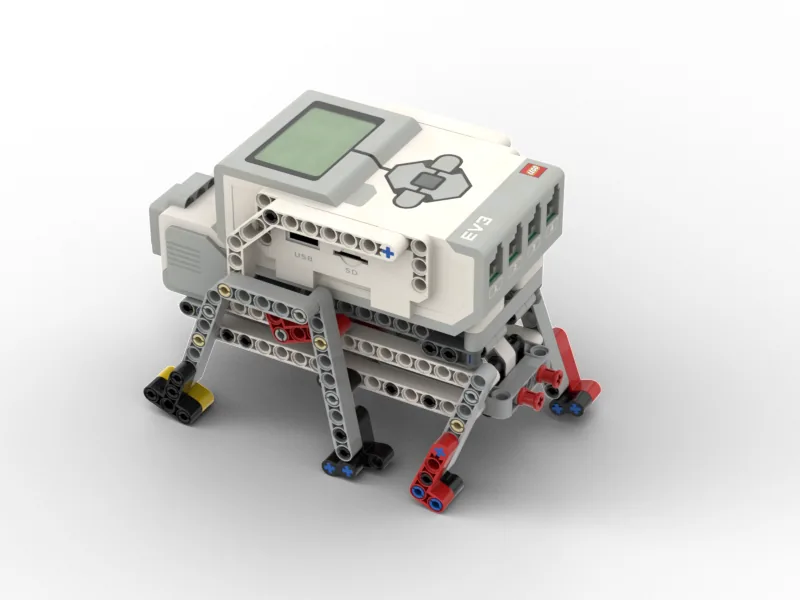
This is what you are building: the Hexapod Walking Robot.
Build it 15 min
Build the model before you read any further. Everything after this is about making it do something, and none of it will make much sense with nothing on the table in front of you.
Use the viewer's own controls to zoom and turn pages. Fullscreen makes it big enough to build from.
Check the finished build against the picture before you switch anything on. A motor mounted the wrong way round is far easier to spot now than it is to debug later, when it looks like a program fault.
Make it move 10 min
Six blocks. The robot asks, waits, and then walks — and it will wait all day if nobody presses anything.
when program starts :: events hat
write [PRESS CENTRE] at line (1) :: display
wait until <is [center v] button pressed? :: sensors>
clear display :: display
[A v] set speed to (50) % :: motors
[A v] run [clockwise v] for (5) [rotations v] :: motors
Ask, wait for the person, then take five steps’ worth of crank.
Walk it in the order the Brick runs it:
write PRESS CENTRE — a machine that is waiting should say so. A robot standing silently still looks broken.
wait until centre button pressed — everything stops here. The program is not slow or stuck; it is doing exactly what you asked.
clear display — the request has been answered, so take it off the screen.
set speed to 50 % — nothing moves yet. Legs need a moderate speed; too fast and the feet skid instead of gripping.
run for 5 rotations — five turns of the crank, which is five full strides. This one has its ending built in, so the robot stops itself.
What success looks like: the screen asks, the robot stands perfectly still for as long as you leave it, and on the press it walks forward in a straight-ish line and stops on its own.
Challenges 27 min
Work through them in order — each is harder than the last. The extra challenge comes after all three, and it is meant to make you plan before you build.
Challenge 1
Make the robot walk only while somebody is asking for it: press the up button and it takes five strides, and it must show a different message on the screen while walking than while waiting. A person across the room should be able to tell which state it is in.
Challenge 2
Give the robot two buttons that do different things. One button makes it walk forward, the other makes it walk backward. It must be ready for a press again after each walk, so a person can send it back and forth without restarting the program.
Challenge 3
Make the robot count its own strides on the screen — 1, 2, 3 — as it walks, and stop by itself after eight. The number must go up as it steps, not appear all at once at the end. You will need to think about what has to happen inside the repeating part and what belongs outside it.
Extra challenge
A hexapod is built for ground that wheels cannot cross. Prove yours is.
Set up a short course with an obstacle a wheeled robot would fail on — a ruler laid flat, a book cover, a slope of stacked paper. Your robot must wait for a person to start it, cross the obstacle, and stop on its own on the far side.
Plan on paper first. Decide what your robot needs in order to climb rather than shuffle, and remember that not all of the answer is in the program: stride speed, how many strides, and where the feet grip are all yours to choose.
Two questions when you demonstrate it. Why does six legs get across something four wheels would not? And what is the largest obstacle yours can manage — measured, not guessed?