- Learnt30 min · what Scratch is, the editor, your first motion blocks
- Basic25 min · you build it yourself
- Challenge 1–327 min · a square, an S, an endless circle
- Extrabonus · write your initial in the air
Today’s Topic 3 min
- What is Scratch, and why learn it?
- Create your own Scratch account
- The Scratch editor — every part of the screen
- Your first motion blocks:
move (10) steps,turn cw (15) degrees,go to x: (0) y: (0) - Make the cat move in a square
Learning outcome
By the end of this lesson you will be able to:
- Log in to your own Scratch account and click Create to open a new project.
- Point to the Stage, the Sprite panel, the Blocks Panel and the Script Area, and say what each one is for.
- Build a stack that sets the cat’s starting position and direction, then moves and turns it — and run it with the green flag.
Learnt — what Scratch is, and your first blocks 30 min
What is Scratch?
In Scratch you build programs by snapping blocks together, like LEGO. You do not type code. You drag a coloured brick into place and it works. With those bricks you can make animations, games and stories.
Why learn it? Scratch is free. It runs in any web browser. The sprites and backdrops are free too. And you can open anybody’s project and look inside to see how they made it.
Get your own Scratch account
Go to scratch.mit.edu. Click Join Scratch. You need your own account, because every lesson ends with you sending a project link to your teacher.
| Step | What you type | Watch out |
|---|---|---|
| 1. Username | A nickname you will remember | Do not use your real full name |
| 2. Password | Something you can spell twice | Write it on paper and keep it in your desk |
| 3. Country | the world | — |
| 4. Birth month and year | Your own | — |
| 5. Gender | Your own | “Prefer not to say” is a real option |
| 6. Email | Yours, or a parent’s | You must open the email and verify |
Now sign in and click Create. A new empty project opens. The cat is already standing on the Stage.
The Scratch editor
This is the whole screen. Find each number on your own screen before you read what it does.
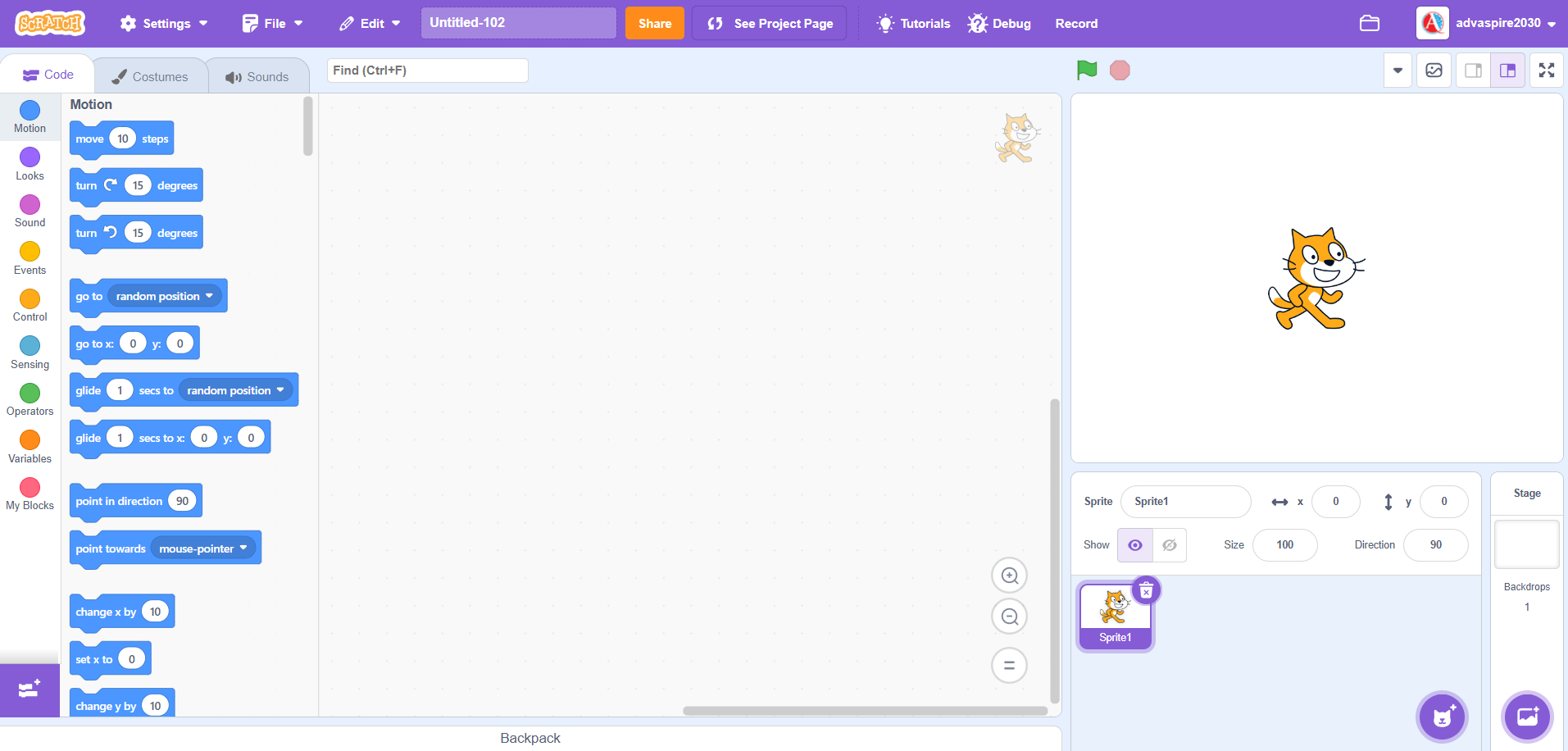
| # | Part | What it is for |
|---|---|---|
| 1 | Blocks Panel | Every block, sorted into nine coloured categories. |
| 2 | Script Area | The big empty space you drag blocks into. Your program lives here. |
| 3 | Stage | The white box everyone watches. Sprites live here and cannot walk off it. |
| 4 | Green flag and red stop | The green flag runs your program. The red octagon stops everything. |
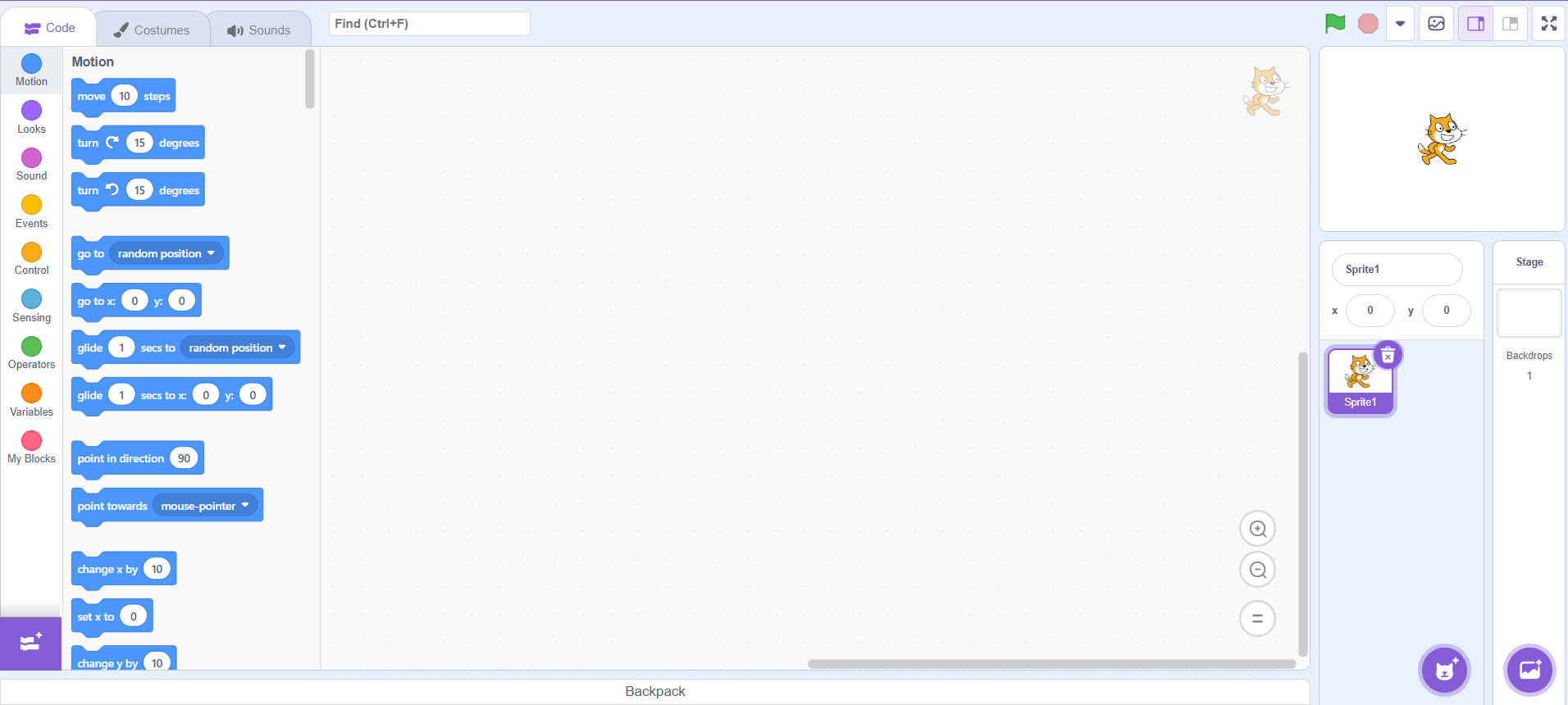
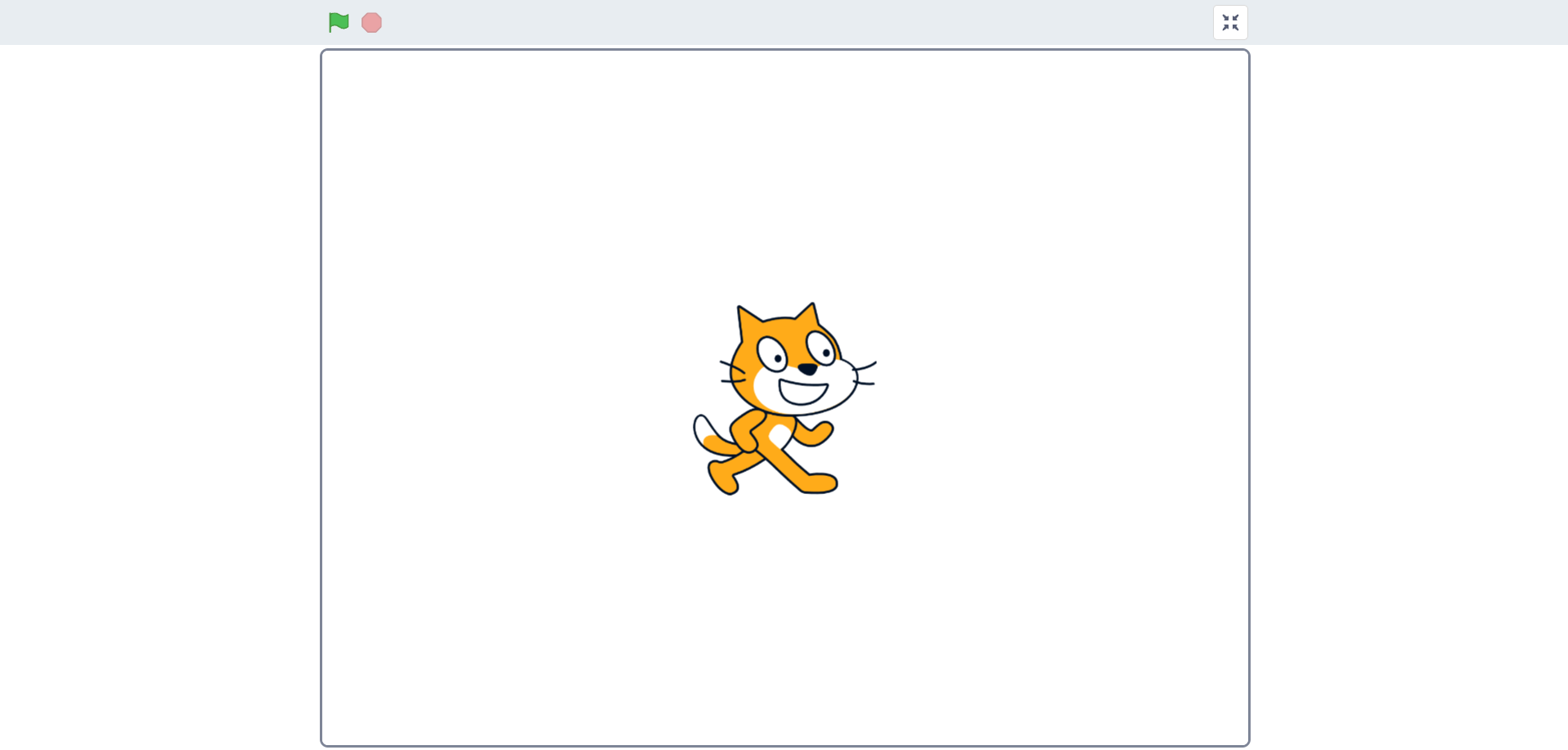
| 5 | View modes | Small stage, big stage, or full screen with no code showing. |
| 6 | Sprite panel | Every character in the project: name, position, size and direction. |
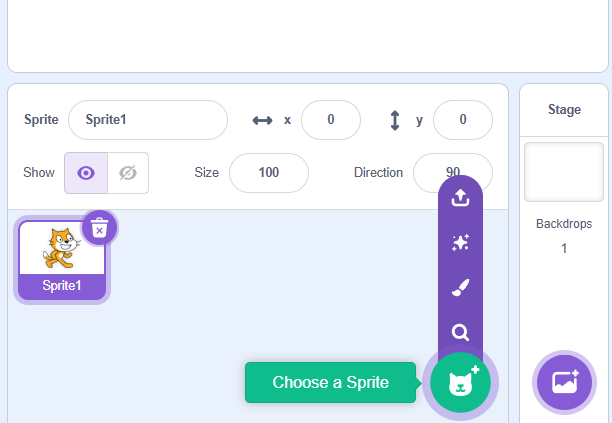
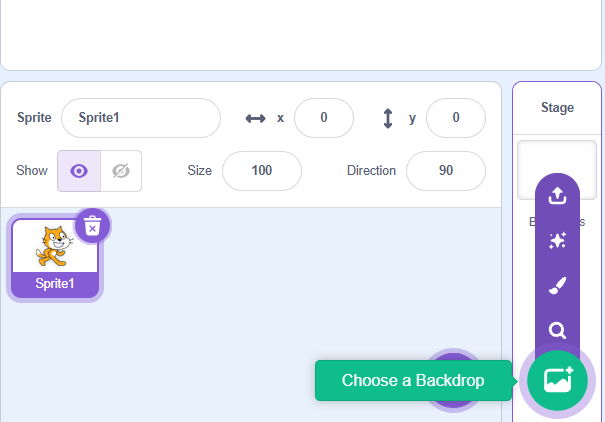
| 7 | Add a sprite or a backdrop | The cat button adds a character. The picture button adds a background. A backdrop never moves — it sits behind everything. |
The three view modes
Button 5 changes how big the Stage is. Try all three.
The sprite’s own settings
Click your cat in the Sprite panel, under the Stage. This is what you see. You can change five things here with no blocks at all.
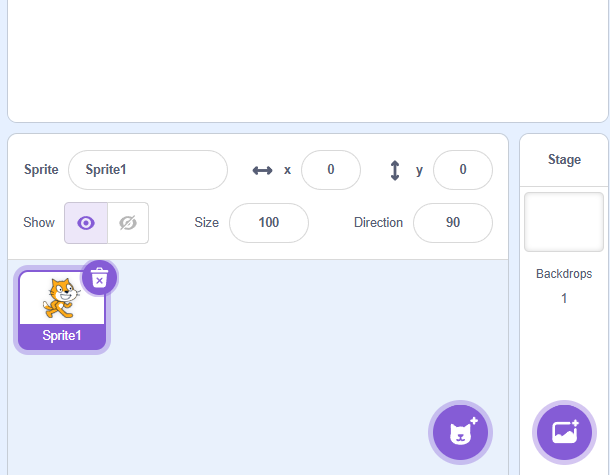
- Name — rename it. Do this as soon as you have two sprites, so your code says Cat and Dog, not Sprite1 and Sprite2.
- x and y — where it is standing. Both boxes show 0, so this cat is in the middle.
- Show / hide — the two eye buttons. The open eye is on, so you can see the cat. The crossed eye hides it.
- Size — a percentage. 100 is normal, 50 is half, 200 is double.
- Direction — which way it faces. 90 is right.
The direction dial
Click the Direction box. A dial pops open.
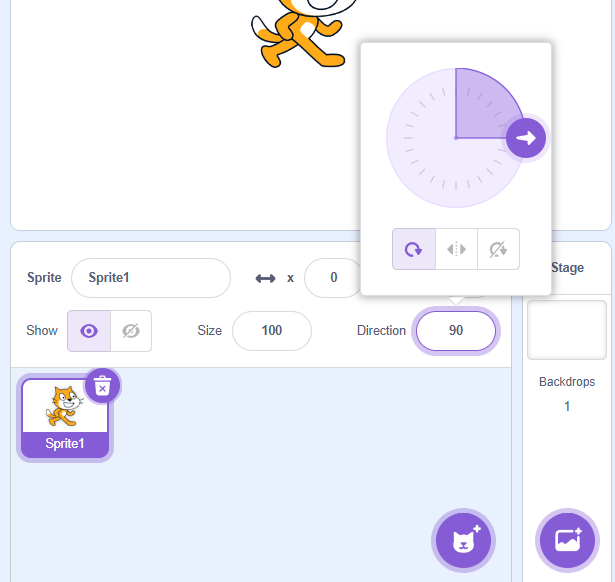
- Click the Direction box to open the dial.
- Drag the purple arrow round to turn the cat.
- The three small buttons are the rotation style: turn all the way round, flip left and right only, or never turn at all. You use the middle one in Lesson 2, and the first one is why your cat tips over today.
Adding a second character, and a background
The two round buttons at the bottom right are how you add things. Hover over one and more buttons slide out: upload your own, get a surprise one, paint your own, or search the library.
The Stage is a grid
Every place on the Stage has two numbers, (x, y). The middle is (0, 0).
- Move right and x gets bigger. Move left and x gets smaller.
- Move up and y gets bigger. Move down and y gets smaller.
Drag the cat around with your mouse. Watch the x and y boxes in the Sprite panel change.
Nine colours of block
Every block has a colour, and the colour tells you which drawer it came from. Find these nine down the left of the Blocks Panel.
| Category | What it controls |
|---|---|
| Motion | Moving and turning the sprite |
| Looks | Costumes, speech bubbles, size, show and hide |
| Sound | Playing and changing sounds |
| Events | What sets a script running |
| Control | Waiting, repeating, deciding |
| Sensing | Noticing touches, keys and the mouse |
| Operators | Sums, comparisons, random numbers |
| Variables | Remembering a number or some words |
| My Blocks | Blocks you invent yourself |
Today you only need two of them: Events to start the program, and Motion to move the cat.
Your first two blocks
- Open Events. Drag
when flag clickedinto the Script Area. - Open Motion. Drag
move (10) stepsunderneath it. - Watch for the faint white line before you let go. That is Scratch saying the two blocks will snap together.
- Click the number and change it to 100. Then click the green flag.
The first block has a rounded top. That shape means “nothing can go above me”. We call it a hat block. Every script starts with one.
when flag clicked
move (100) steps
How to use this: Click the green flag to start it. Nothing else to press — watch it through, then use ↺ Reset to run it again.
Change the number, change the jump
The white circle in the block is a box. You can type in it.
- Click the white circle inside
move (100) steps. - Type a new number. Try 10. Then try 200.
- Click the green flag.
- Watch how far the cat goes.
move (10) steps
move (100) steps
move (200) steps
One step is one pixel. The Stage is 480 pixels wide. So 100 steps is about a fifth of the way across.
How to use this: Click the green flag to start it. Nothing else to press — watch it through, then use ↺ Reset to run it again.
Repeat — one jump becomes a walk
One big jump is not a walk. The cat is just somewhere else. To make it travel, cut the journey into small pieces.
- Open Control. Drag
repeat (10)into the Script Area. - Drop
move (10) stepsinside the mouth of the repeat block. - Click the green flag and watch the cat walk.
when flag clicked
repeat (10)
  move (10) steps
end
How to use this: Click the green flag to start it. Nothing else to press — watch it through, then use ↺ Reset to run it again.
Faster, or further?
Two numbers, two different jobs. It is easy to mix them up:
- A bigger number in the repeat block means further. More pieces of journey.
- A bigger number in the move block means faster. Bigger pieces, same number of them.
Try both now. Change one number at a time. Say out loud what you think will happen first.
Always start from the same place
Click the flag three times. The cat drifts off the edge. That is because it starts from wherever it stopped last time.
Fix it by telling the cat where to begin. Drag go to x: (0) y: (0) straight under the hat block.
when flag clicked
go to x: (0) y: (0)
repeat (10)
  move (10) steps
end
Turning
turn cw (15) degrees spins the cat clockwise (to the right). turn ccw (15) degrees spins it anticlockwise (to the left).
Turning never moves the cat. It only changes which way the cat points. That is what decides where the next move block sends it.
How to use this: Click the green flag to start it. Nothing else to press — watch it through, then use ↺ Reset to run it again.
One turn cw (90) degrees snaps round instantly. To watch the turn, break it up, the same way you broke up the walk:
when flag clicked
repeat (9)
  turn cw (10) degrees
end
Setting the starting direction
Direction is a number too:
- 90 is right, 0 is up
- −90 is left, 180 is down
A sprite keeps the direction you left it in. So a script that turns should also set its direction at the start, with point in direction (90 v). Same idea as setting the position.
Basic — now build it yourself 25 min
Your teacher showed you all of that. Now you do it, on your own computer.
Your target: a cat that
- always starts in the middle, facing right,
- walks 200 steps,
- then turns a quarter-turn.
How to use this: Click the green flag to start it. Nothing else to press — watch it through, then use ↺ Reset to run it again.
Step 1 — open a fresh project
Sign in. Click Create. Rename the project T1.1 – your name in the box at the top.
Step 2 — the hat block
Events → drag when flag clicked into the Script Area. Click the flag. Nothing happens, and that is correct. The hat block is waiting for something to do.
Step 3 — set the starting position
Motion → snap go to x: (0) y: (0) under the hat. Now drag the cat anywhere with your mouse and click the flag. It jumps back to the middle.
Step 4 — set the starting direction
Snap point in direction (90 v) underneath. Now spin the cat by hand with the direction dial in the Sprite panel. Click the flag again. It straightens up.
Step 5 — walk
Snap move (200) steps on the end. Click the flag. The cat crosses to the right side of the Stage in one jump.
Step 6 — make the walk visible
One jump is not a walk. Put the move block inside repeat (20) and change it to move (10) steps. Twenty tens is still 200. But now you watch the cat get there.
Step 7 — turn at the end
Snap turn cw (90) degrees after the repeat block. Outside it, not inside. Click the flag. The cat walks across, then faces downwards.
Step 8 — check your work against this
when flag clicked
go to x: (0) y: (0)
point in direction (90 v)
repeat (20)
  move (10) steps
end
turn cw (90) degrees
How to use this: Click the green flag to start it. Nothing else to press — watch it through, then use ↺ Reset to run it again.
It does something different every time I click — why?
You are missing one of the two setup blocks. Without go to x: (0) y: (0) the cat starts from wherever it stopped last. Without point in direction (90 v) it starts facing wherever it was last turned. Both go directly under the hat block, before the repeat.
Move the cat in a big square
Send the cat round a square and bring it home.
- Every side is 200 steps.
- Every corner is a 90 degree turn.
- It starts in the same place every run.
How to use this: Click the green flag to start it. Nothing else to press — watch it through, then use ↺ Reset to run it again.
Teacher reveal — the square
when flag clicked
go to x: (-100) y: (100)
point in direction (90 v)
repeat (4)
  repeat (20)
    move (10) steps
  end
  turn cw (90) degrees
end
One side and one corner, done four times. That is the idea the challenge is looking for. 360 ÷ 4 = 90, so a 90 degree turn at each corner brings the cat back to direction 90.
20 × 10 = 200, so the inner repeat (20) walks one full side. It is also why the embed is watchable. The short way — repeat (4) holding move (200) steps and turn cw (90) degrees — draws the same square in about four frames, so nobody sees the cat move. Both are correct. Accept either, then ask the pupil to make theirs visible.
Can you make an “S” shape?
This is a block S. No curves. Straight lines and 90 degree corners only — the same two ideas as the square.
- Five straight lines: three long ones and two short ones.
- Four corners, all 90 degrees.
- The first two corners turn left. The last two turn right.
That swap in the middle is what makes an S. Without it you get a spiral.
How to use this: Click the green flag to start it. Nothing else to press — watch it through, then use ↺ Reset to run it again.
Teacher reveal — the S
What your pupil builds. Five moves and four turns, in this order:
when flag clicked
go to x: (100) y: (120)
point in direction (-90 v)
move (200) steps
turn ccw (90) degrees
move (120) steps
turn ccw (90) degrees
move (200) steps
turn cw (90) degrees
move (120) steps
turn cw (90) degrees
move (200) steps
The cat starts at the top right facing left, the way a child writes an S. Two left turns then two right turns cancel out, so it finishes facing left again. A mirrored S — start at the bottom left facing right, turn right twice then left twice — is equally correct.
What the embed above runs. The same route, with every stroke broken into small steps so the class can watch it happen. Five move (200) steps blocks draw the letter in five frames and nobody sees a thing.
when flag clicked
go to x: (100) y: (120)
point in direction (-90 v)
repeat (20)
  move (10) steps
end
turn ccw (90) degrees
repeat (12)
  move (10) steps
end
turn ccw (90) degrees
repeat (20)
  move (10) steps
end
turn cw (90) degrees
repeat (12)
  move (10) steps
end
turn cw (90) degrees
repeat (20)
  move (10) steps
end
How do you make the cat keep moving in a circle?
Not one lap. Endless laps.
A circle is a lot of tiny moves with a tiny turn after each one. You already did this in the Learnt section, when nine small turns added up to one quarter-turn.
The cat must still be going round when you get bored of watching. Only the red stop sign stops it.
How to use this: Click the green flag to start it. Nothing else to press — watch it through, then use ↺ Reset to run it again.
Teacher reveal — the endless circle
when flag clicked
go to x: (0) y: (115)
point in direction (90 v)
forever
  move (10) steps
  turn cw (5) degrees
end
forever is the block this challenge exists to make pupils want. A repeat (72) also draws one lap, because 72 × 5 = 360. But it stops, and the brief says it must not. Look at the shape of forever: there is no bump underneath, because nothing can run after it.
The two numbers decide how big the circle is. A move of 10 with a turn of 5 gives a circle about 115 wide from the middle — the one drawn above. Bigger moves make a bigger circle; bigger turns make a smaller one. Any pair that keeps the cat on the Stage is correct.
Write your initial in the air
You can make the cat walk straight lines, sharp corners and round curves. That is everything you need to walk the shape of a letter.
Make the cat walk the first letter of your own name, as a capital. Make it big enough to fill most of the Stage. There is no pen and no drawing — just the cat’s route. Somebody watching over your shoulder should be able to say the letter before the cat finishes.
How to use this: Click the green flag to start it. Nothing else to press — watch it through, then use ↺ Reset to run it again.
Summary 5 min
- Scratch is free block coding. You build programs by snapping bricks together.
- You have your own verified account. You hand work in by sharing a project link.
- The Stage is a grid. The middle is (0, 0). x runs −240 to +240. y runs −180 to +180.
- Every script starts with a hat block.
when flag clickedis the one you will use most. - Motion blocks move and turn the sprite.
- Control blocks like
repeat (10)andforeverdo the same thing over and over. - Set the starting position and the starting direction. If you do not, your program does something different on its second run.
- Sprite
- A character on the Stage that follows the blocks you give it.
- Hat block
- A rounded-top block that starts a script — nothing can sit above it.
- Step
- One pixel of travel, in whichever direction the sprite is currently facing.
- Direction
- Which way a sprite faces: 90 is right, 0 up, −90 left, 180 down.
Hand in
Save your project. Click Share. Send the link to your teacher. Missions you finish at home count too. Bring the link to the next class and claim your Adcoins.