- Learnt27 min · say, think, a second sprite, wait timing, broadcast
- Basic25 min · build the eight-line chat, twice
- Challenge 1–327 min · a new script, a new cast, a second scene
- Extrabonus · a third voice joins in
Review — where we got to 5 min
Last lesson you made the cat move. You learnt three things:
- A bigger number in
repeat (10)goes further. - A bigger number in
move (10) stepsgoes faster. - Every script needs
go to x: (0) y: (0)andpoint in direction (90 v)at the top. Without them it does something different on its second run.
Quick-fire
Read this stack. Where does the cat end up, and which way is it facing?
when flag clicked
go to x: (0) y: (0)
point in direction (90 v)
move (200) steps
turn cw (90) degrees
Reveal the answer
At (200, 0) — 200 pixels right of the centre — facing down. The turn happens after the move, and a turn never carries the cat anywhere.
Today’s Topic 3 min
- Looks blocks — make a sprite say something
- Rotation style left–right, so a new character faces the right way
- Using
wait (1) secondsto time a conversation - The broadcast function — a far better way to run a conversation
Learning outcome
By the end of this lesson you will be able to:
- Add a second sprite and turn it to face the first one.
- Write an eight-line conversation with
say [Hello!] for (2) secondsandwait (1) seconds. - Rebuild the same conversation with
broadcast [message1 v]andwhen I receive [message1 v], and explain why that version survives an edit.
Learnt — making sprites talk 27 min
Say and think
Open Looks. The first four blocks are the talking ones.
A say bubble is out loud. A think cloud is inside the head. Same block shape, different picture.
| Block | What it does | When to use it |
|---|---|---|
say [Hello!] for (2) seconds | Bubble appears, waits 2 seconds, disappears on its own | Almost always — this is your dialogue block |
say [Hello!] | Bubble appears and stays until something changes it | A label that must stay on screen |
think [Hmm...] for (2) seconds | The same, as a thought cloud | What a character is thinking but not saying |
think [Hmm...] | Thought cloud that stays | Rarely — it looks stuck |
How to use this: Click the green flag to start it. Nothing else to press — watch it through, then use ↺ Reset to run it again.
Add a second character
One sprite talking to itself is not a conversation. You need a second one.
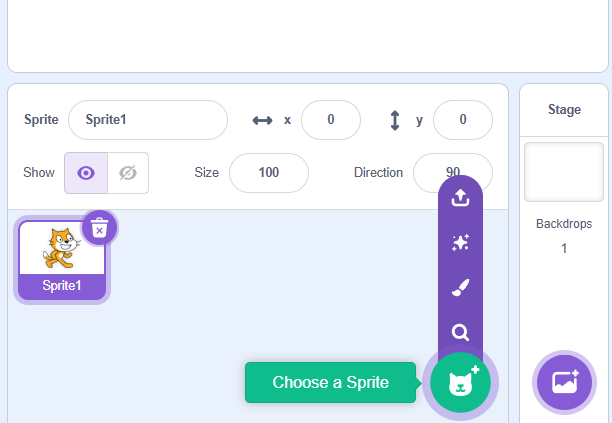
- Hover over the round cat button at the bottom right of the Sprite panel.
- Click the magnifying glass — that is the library.
- Find Dog2 and click it.
Turn it round
The dog arrives facing right, with its back to the cat. Turning it is two settings, not one.
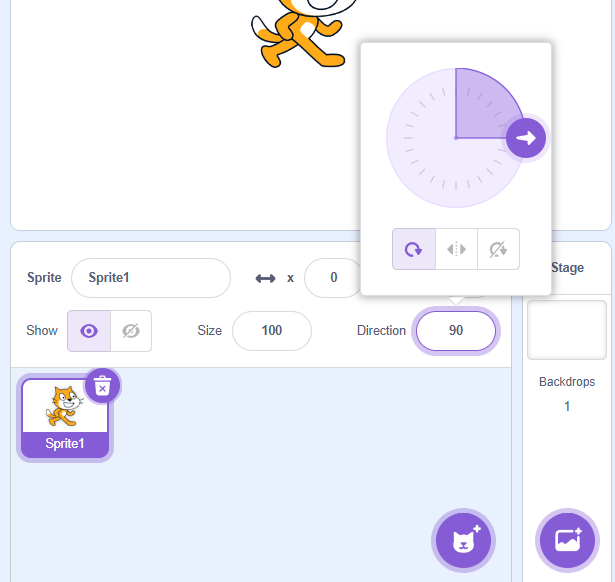
- Click the Direction box and set it to −90. The dog now faces left — but upside down.
- Click the middle rotation-style button, left / right. Now the dog flips instead of somersaulting.
Why upside down? The first rotation style spins the whole costume. That is the one your cat used last lesson when it tipped over.
How to use this: Click the green flag to start it. Nothing else to press — watch it through, then use ↺ Reset to run it again.
While you are there, rename both sprites to Cat and Dog. You are about to write scripts about each other, and Sprite1 tells you nothing.
Timing a conversation with waits
Here is the conversation the class is building:
| # | Who | Line |
|---|---|---|
| 1 | Cat | Hi Doggy! |
| 2 | Dog | Hi Catty! |
| 3 | Cat | What’s up! |
| 4 | Cat | How are you? |
| 5 | Dog | Quite busy lately… |
| 6 | Dog | I’m going to have my lunch |
| 7 | Dog | Wanna grab some food together? |
| 8 | Cat | Sure! Let’s go! |
Both sprites start on the same green flag. So each one has to sit out the other’s lines.
Every line lasts 1.5 seconds. That makes the sums easy. While the other character says two lines, you wait 3 seconds.
when flag clicked
say [Hi Doggy!] for (1.5) seconds
wait (1.5) seconds
say [What's up!] for (1.5) seconds
say [How are you?] for (1.5) seconds
wait (4.5) seconds
say [Sure! Let's go!] for (1.5) seconds
when flag clicked
wait (1.5) seconds
say [Hi Catty!] for (1.5) seconds
wait (3) seconds
say [Quite busy lately...] for (1.5) seconds
say [I'm going to have my lunch] for (1.5) seconds
say [Wanna grab some food together?] for (1.5) seconds
Why this breaks the moment you edit it
Add one line in the middle and every wait after it is wrong by 1.5 seconds. Both characters talk at once and the bubbles overlap. With eight lines that is annoying. With thirty it is hopeless.
Broadcast — acting on cues
Actors on a stage do not hold stopwatches. They wait for a cue.
When you hear your line, you say yours. Scratch has exactly that, inEvents.
| Block | Category | What it does |
|---|---|---|
broadcast [message1 v] | Events | Shouts a named message to every sprite and the Stage — including the sprite that shouted it |
when I receive [message1 v] | Events | A hat block that runs its stack when that message is heard. No such hat means the sprite ignores the message completely |
Click the dropdown and choose New message to name your own. Give cues useful names, like dog 1 and cat 2. Not message1 and message2.
How to use this: Click the green flag to start it. Nothing else to press — watch it through, then use ↺ Reset to run it again.
The conversation now splits into short stacks. Nobody counts seconds. Each one ends its turn by calling the next.
when flag clicked
say [Hi Doggy!] for (1.5) seconds
broadcast [dog 1 v]
when I receive [dog 1 v]
say [Hi Catty!] for (1.5) seconds
broadcast [cat 2 v]
Basic — build it both ways 25 min
You are going to build the same eight-line conversation twice. Once with waits, once with broadcasts.
Building it twice is the point. The second way is easier, and you only feel that if you have felt the first.
Step 1 — set the stage
New project, named T1.2 – your name. Add the Hall backdrop, add Dog2, and rename the two sprites Cat and Dog.
Step 2 — line them up
Drag the Cat to about (−120, −40) and the Dog to about (110, −30). Set the Dog’s rotation style to left / right and its direction to −90.
Step 3 — the Cat’s waits version
Click the Cat and build its seven-block stack from the Learnt section. Click the flag. The cat talks to itself with gaps in the middle. That is correct so far.
Step 4 — the Dog’s waits version
Click the Dog and build its stack. Click the flag. Both animals now hold a conversation. Watch it right through and check no two bubbles are ever on screen together.
How to use this: Click the green flag to start it. Nothing else to press — watch it through, then use ↺ Reset to run it again.
Step 5 — break it on purpose
Add one more line to the Cat: say [Nice weather!] for (1.5) seconds after line 4. Run it again. The rest of the conversation now overlaps. Do not fix it — just see it.
Step 6 — start the broadcast version
Delete the wait (1) seconds blocks from both sprites. Break each script into turns. Then create four messages: dog 1, cat 2, dog 2, cat 3.
Step 7 — the Cat’s three stacks
when flag clicked
say [Hi Doggy!] for (1.5) seconds
broadcast [dog 1 v]

when I receive [cat 2 v]
say [What's up!] for (1.5) seconds
say [How are you?] for (1.5) seconds
broadcast [dog 2 v]

when I receive [cat 3 v]
say [Sure! Let's go!] for (1.5) seconds
Step 8 — the Dog’s two stacks
when I receive [dog 1 v]
say [Hi Catty!] for (1.5) seconds
broadcast [cat 2 v]

when I receive [dog 2 v]
say [Quite busy lately...] for (1.5) seconds
say [I'm going to have my lunch] for (1.5) seconds
say [Wanna grab some food together?] for (1.5) seconds
broadcast [cat 3 v]
when flag clicked at all — it only ever answers.How to use this: Click the green flag to start it. Nothing else to press — watch it through, then use ↺ Reset to run it again.
Step 9 — add that line again
Put say [Nice weather!] for (1.5) seconds back into the Cat’s second stack. Run it. It just works. Nothing else needed changing. That is what you built the second version for.
Nothing happens after the cat’s first line — why?
Three usual causes. The broadcast [dog 1 v] is on the Cat but the when I receive [dog 1 v] hat was dropped on the Cat too, not the Dog. Or the two dropdowns name different messages — dog 1 and dog1 are not the same cue. Or you grabbed broadcast [dog 1 v] and wait, which is a different block; it works here, but check which one you have.
The worried dog
Program this conversation. The two pauses are part of it — hold the silence.
| # | Who | Line |
|---|---|---|
| 1 | Cat | Good morning, Doggy! |
| 2 | Dog | Good morning, Catty! |
| 3 | Cat | How is everything going? |
| 4 | Dog | I’m good… … |
| — | — | (pause a moment) |
| 5 | Dog | But I’m quite worried about my exam |
| 6 | Dog | I think I screwed the exam. |
| — | — | (pause a while) |
| 7 | Cat | Don’t worry about it, let’s catch some drinks first! |
How to use this: Click the green flag to start it. Nothing else to press — watch it through, then use ↺ Reset to run it again.
Teacher note
Either version passes, but the pauses are the tell. In the waits version a pause is one more number to keep in step with everything after it; in the broadcast version it is a wait (2) seconds sitting quietly before the next broadcast [message1 v], affecting nothing else. Pupils who built Step 9 usually spot that without prompting.
Your cast, your words
Swap both characters for sprites you pick yourself. Anything in the library except the cat and Dog2. Then write your own conversation of 6 to 10 lines.
Pick a subject where the two characters need each other. Looking after a sick friend. Staying safe and clean. Sorting out an argument. Both characters must have something real to say.
How to use this: Click the green flag to start it. Nothing else to press — watch it through, then use ↺ Reset to run it again.
Teacher note
The hidden work is the rotation style. Most library sprites face right, so the right-hand character needs direction −90 and left / right rotation — the same two settings as the dog, done again without being told. Pupils who skip it end up with a character standing on its head, which is the fastest way to make the lesson stick.
A story in two scenes
One conversation is a moment. A story goes somewhere.
Make a story with at least two different scenes. Use broadcast to run the whole thing, including the moment the setting changes.
How to use this: Click the green flag to start it. Nothing else to press — watch it through, then use ↺ Reset to run it again.
Teacher reveal — what the Stage needs
The Stage takes scripts of its own: click the backdrop thumbnail to the right of the sprite list and the Blocks Panel switches to it.
when I receive [scene 2 v]
switch backdrop to [School v]
The trap is the second run. Whoever sends scene 2 leaves the backdrop on School forever, so the next green flag starts in the wrong place. The Stage needs a second stack — when flag clicked then switch backdrop to [Hall v] — to put the story back at the beginning. That is the same “set your starting state” idea as last lesson’s go to x: (0) y: (0), and it is worth naming out loud.
The third voice
Two characters can just about be timed by hand. Three cannot.
Build a conversation with three sprites.
- Each one speaks at least twice.
- The third character arrives part-way through.
- What the other two are talking about changes when it does.
No wait (1) seconds anywhere in the turn-taking. Every handover is a cue.
How to use this: Click the green flag to start it. Nothing else to press — watch it through, then use ↺ Reset to run it again.
Summary 3 min
say [Hello!] for (2) secondsis your dialogue block. The “for seconds” half is what holds the script while the bubble is up.- A sprite added from the library faces right. Direction −90 plus left / right rotation style turns it round without standing it on its head.
wait (1) secondscan time a conversation, but every number depends on every other one — edit one line and they all break.- Broadcast is acting on cues.
broadcast [message1 v]hands over;when I receive [message1 v]takes your turn. - Broadcast survives editing. That is why you use it as soon as you have more than a few lines.
- Broadcast
- A named message sent to every sprite and the Stage at once.
- Rotation style
- How a sprite shows its direction: spin all the way round, flip left–right only, or never rotate.
- Stack
- One group of blocks joined together, starting with one hat block.
- Cue
- The signal that tells an actor — or a sprite — that it is their turn.
Hand in
Share your project and send the link to your teacher. Bring the missions you finish at home to the next class and claim your Adcoins.