- Learnt27 min · backdrops, walking on and off, hide and show, music
- Basic25 min · build the two-scene story
- Challenge 1–327 min · give it legs, add scene 2, add scene 3
- Extrabonus · somebody is already waiting there
Review — where we got to 5 min
Last lesson you gave your sprites legs. You learnt three things:
next costumeinside arepeat (10)is a walk. The repeat number is how long the walk lasts.- Start with
switch costume to [costume1 v], the same way you start withgo to x: (0) y: (0). set rotation style [left-right v]lets a sprite face left without standing on its head.
Quick-fire
Two stacks, one green flag. What does the cat do?
when flag clicked
go to x: (-200) y: (-40)
repeat (20)
  move (10) steps
end

when flag clicked
repeat (20)
  next costume
end
Reveal the answer
It walks from (−200, −40) to (0, −40). One stack moves it, the other changes its costume, and they run at the same time. That is parallel scripting, and today you use it again.
Today’s Topic 3 min
- Add a backdrop to your Stage
- Set up a starting scene
- Walk your characters into the scene, and back out of it
- Change the backdrop for the next scene
- Add background music
Learning outcome
By the end of this lesson you will be able to:
- Add two backdrops and switch between them with a block.
- Walk a sprite on from outside the Stage, and off it again, with
hideandshow. - Put a script and a looping piece of music on the Stage itself.
Learnt — scenes, entrances and exits 27 min
Add a backdrop
A backdrop is the picture behind everything. It never moves, and sprites walk in front of it.
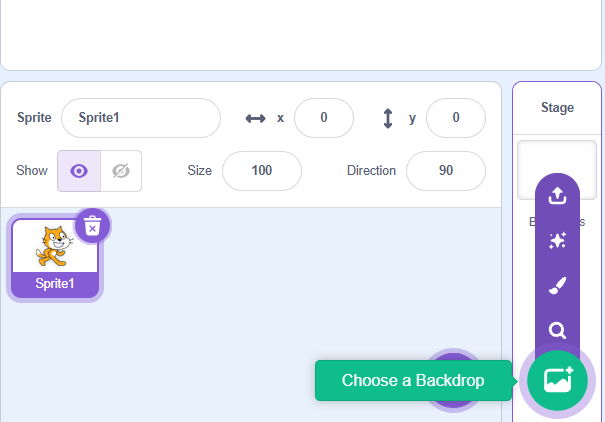
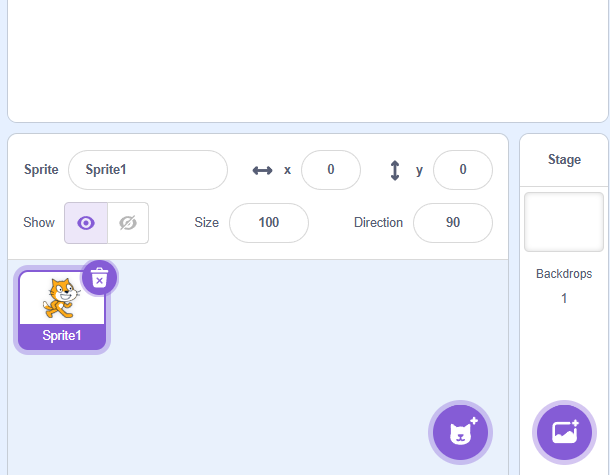
- Hover over the round picture button at the bottom right, under the Stage column.
- Click the magnifying glass to open the library.
- Choose Hall. Then add School as well — you need two today.
Walking on from outside
A character that is simply there when the flag is clicked has not arrived. It has always been there. To make an entrance, start it outside the picture.
The Stage runs from −240 to +240. Put the cat at x −240 and half of it is already off the edge.
when flag clicked
show
go to x: (-240) y: (-40)
point in direction (90 v)
repeat (24)
  move (5) steps
  wait (0.05) seconds
end

when flag clicked
switch costume to [costume1 v]
repeat (24)
  next costume
  wait (0.05) seconds
end
How to use this: Click the green flag to start it. Nothing else to press — watch it through, then use ↺ Reset to run it again.
Walking off — and hiding
Going the other way is the same idea. But there is a catch, and it catches everybody.
when I receive [leave v]
repeat (30)
  move (10) steps
  next costume
  wait (0.04) seconds
end
hide
How to use this: Click the green flag to start it. Nothing else to press — watch it through, then use ↺ Reset to run it again.
Changing the scene
Now the Stage is empty, the backdrop can change and nobody sees it happen. That is the whole trick of a scene transition — leave, switch, come back.
The backdrop is not a sprite, so the block does not go on the cat. It goes on the Stage, which has scripts of its own.
when flag clicked
switch backdrop to [Hall v]

when I receive [scene 2 v]
switch backdrop to [School v]
Background music
The Stage can hold sounds too, and that is where music belongs.
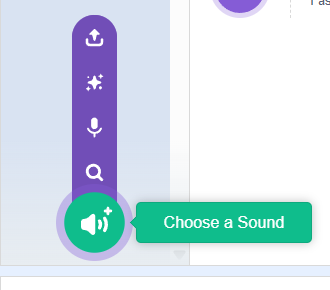
- Click the Stage thumbnail, then the Sounds tab at the top left.
- Hover the round sound button at the bottom left and click the magnifying glass.
- Open the Loop tab and pick Bossa Nova.
Bossa Nova is only about six seconds long. To keep it going, wrap it in a forever.
when flag clicked
forever
  play sound [Bossa Nova v] until done
end
play sound [Bossa Nova v] until done waits for the music to finish before the next block runs. Inside a forever, that means it starts again.How to use this: Click the green flag to start it. Nothing else to press — watch it through, then use ↺ Reset to run it again.
Basic — build the two-scene story 25 min
Open your Topic 1.2 conversation project, or start a new one with a cat and a Dog2. You are going to give it an entrance, an exit and a second scene.
How to use this: Click the green flag to start it. Nothing else to press — watch it through, then use ↺ Reset to run it again.
Step 1 — two backdrops
Add Hall and School. Click the Stage thumbnail and give it when flag clicked then switch backdrop to [Hall v].
Step 2 — the cat walks in
On the Cat, build the two stacks from the Learnt section: the motion stack starting at x −240, and the costume stack beside it. Click the flag and watch it arrive.
Step 3 — start the chat when it arrives
Put broadcast [chat v] at the bottom of the walking stack. Move your first line of dialogue onto a new stack that starts with when I receive [chat v].
The conversation now begins when the cat is in place, not before.
Step 4 — the last line calls them out
At the end of the conversation, put broadcast [leave v].
Step 5 — both walk out
Give the Cat and the Dog each a when I receive [leave v] stack that walks right and ends in hide.
The Dog is facing left, so turn it round first with point in direction (90 v).
Step 6 — change the scene
After the Cat’s hide, add broadcast [scene 2 v]. On the Stage, add a second stack: when I receive [scene 2 v] then switch backdrop to [School v].
Step 7 — walk back in
Give both sprites a when I receive [scene 2 v] stack: go to the edge, show, then walk in.
Step 8 — put the show blocks back
Every sprite ends hidden. Add show to the top of every when flag clicked stack.
Now click the flag five times. It must do exactly the same thing every time.
Step 9 — music
Add Bossa Nova to the Stage’s Sounds tab and give it the forever loop from the Learnt section.
I click the flag a second time and the Stage stays empty — why?
You have hide at the end and no show at the start. The sprites are still hidden from the last run. Every flag stack needs show and a go to x: () y: () at the top.
The story starts in the school instead of the hall — why?
The Stage is missing its when flag clicked stack. The last run left the backdrop on School and nothing ever puts it back.
Give your story legs
Take your conversation from Topic 1.2 and add movement to it.
- The cat walks in from outside the Stage to start the conversation.
- When the conversation ends, both characters walk out together.
- Add a backdrop, and background music on the Stage.
Teacher note
The mark is the second click, not the first. Almost every pupil gets the walk-out working and then finds nothing happens on the next run. Let them hit it: the missing show is the lesson, and it is the same idea as Topic 1.1’s missing go to x: () y: ().
Add a second scene
Carry on from Challenge 1. After both characters leave, the backdrop changes and the story continues somewhere new.
- Pick a second backdrop.
- Both characters walk back in — from the left or the right. They must not just appear.
- They have a new conversation in the new place.
Teacher note
The order matters and is worth saying out loud: hide, then switch, then show. A pupil who switches the backdrop before the characters have left gets a visible jump cut, which looks like a bug but is really a sequencing mistake.
The neat trick is that broadcast [scene 2 v] does two jobs at once — it tells the Stage to change and tells the sprites to come back on. One cue, three listeners.
Three scenes, one story
Carry on from Challenge 2 and add a third place. Between every scene, the characters walk out and walk back in.
Done when: your story visits three different backdrops on one green flag, every change happens with the Stage empty, and running it a second time starts again from scene 1.Teacher reveal — keeping three scenes straight
Three scenes is where guessing stops working and naming starts to pay. Cues named scene 2, scene 3, leave 1, leave 2 can be read back in order; four messages called message1 to message4 cannot.
The Stage ends up with four stacks — one flag stack and one per scene. That is normal, and it is the first time in the course the Stage carries real logic rather than a single block.
Somebody is already waiting
So far everybody walks in together. Add a third character who is already standing in scene 2 when the other two arrive — and who says something about being kept waiting.
That character must not be visible in scene 1 at all. It appears when the scene changes, not before.
Summary 5 min
- A backdrop is the picture behind everything. Add one with the picture button at the bottom right.
- Start a character outside the Stage — x −240 or +240 — and walk it in. That is an entrance.
- A sprite cannot walk off the Stage.
hideis what takes it out of the picture. - Every
hideneeds ashowat the top of the flag stack, or the second run plays to an empty Stage. - A scene change is leave, switch, come back. Change the backdrop while nobody is looking.
- The Stage has its own scripts and its own sounds. Background music goes there, in a
foreverwithplay sound [Bossa Nova v] until done.
- Backdrop
- The picture behind the sprites. It never moves.
- Scene
- One part of a story: a backdrop, and whoever is on the Stage during it.
- Transition
- The moment between two scenes — everybody leaves, the backdrop changes.
- Parallel scripting
- Two stacks on the same sprite running at the same time, from the same hat.
Hand in
Share your project and send the link to your teacher. Missions you finish at home count too — bring the link to the next class and claim your Adcoins.